How Many Fonts Should a Website Use?
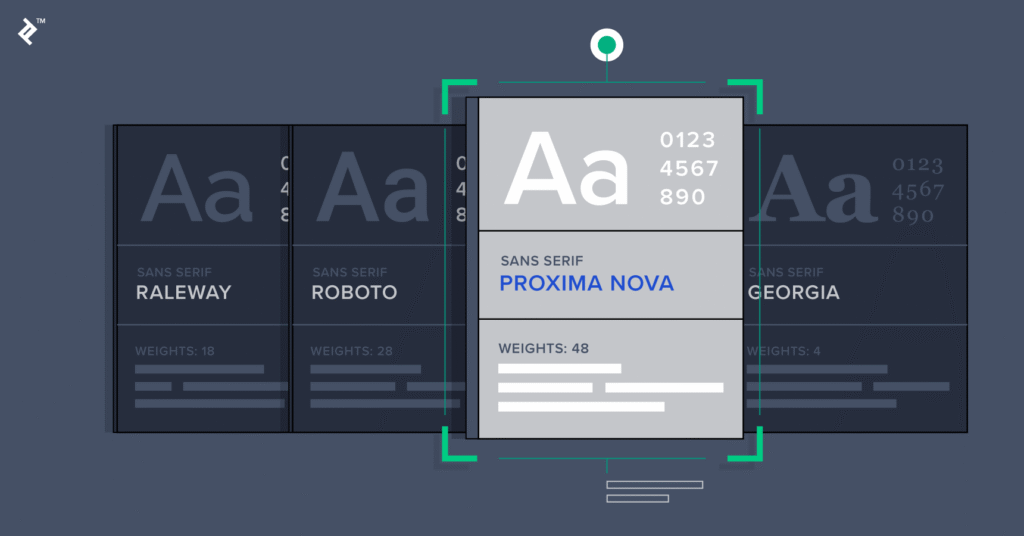
For most websites, two font families are enough: one for headings and another for body text. Some websites can work perfectly well with a single typeface, while highly specialized designs may use a third font for a limited purpose such as branding or display text.
There is no universal rule that says a website must use exactly two fonts. The important issue is whether the typography creates a clear hierarchy without making the interface visually inconsistent.
MDN’s web performance guidance similarly notes that using lots of fonts can increase loading costs and make a design look disorganized, while two or three fonts are often sufficient.
Typography affects much more than appearance. Font choice influences how headings stand out, how easily paragraphs can be scanned, how much space text occupies, how a brand feels, and whether the layout continues working when users increase text size.
A professional typography system therefore starts with purpose, not with choosing the most attractive font in a font library.
Why Does Typography Matter So Much in Web Design?
Typography is one of the main systems that controls visual hierarchy.
A visitor should be able to distinguish a page title from a section heading, body copy, navigation item, button, caption, and supporting information without having to consciously figure out which element is important.
That hierarchy comes from several properties working together:
- Font family
- Font size
- Font weight
- Line height
- Letter spacing
- Text width
- Case and capitalization
- Color and contrast
- Spacing between text elements
This is why simply choosing a fashionable font does not automatically produce good website typography.
For example, a bold display font may work well for a hero heading but become tiring when used for long paragraphs. Conversely, a highly readable body typeface may not provide enough visual character for a large promotional headline.
The goal is to assign each typography role deliberately.
Should You Use One Font or Two Fonts on a Website?
One font can be enough
A single font family is often the simplest solution for a modern website. You can create hierarchy by changing weight, size, line height, and spacing rather than introducing another family.
For example:
- H1: same family, 700 weight
- H2: same family, 600 weight
- Body: same family, 400 weight
- Buttons: same family, 600 weight
This approach creates a unified visual system and reduces the number of font resources that may need to be loaded.
It is particularly useful for SaaS websites, corporate sites, documentation, blogs, portfolios, and other interfaces where clarity matters more than decorative contrast.
Two fonts provide more contrast
A common approach is to use one family for headings and another for body text.
For example, a designer might pair a distinctive serif heading font with a neutral sans-serif body font. The difference helps establish hierarchy without requiring excessive font sizes or decorative effects.
However, the two fonts should still feel compatible. They need to work together in terms of proportions, weight, spacing, and overall visual character.
Let’s Talk About Your Business
Not sure which approach is right for your business? Get a free consultation with our team.
When does a third font make sense?
A third font should have a specific job.
It might be appropriate for:
- A logo or brand mark
- A limited campaign headline
- Editorial or luxury-style display text
- A special quotation or decorative section
Using a third font throughout navigation, buttons, cards, headings, paragraphs, and promotional elements usually creates more complexity than value.
The question should not be “How many fonts can I use?” but “Does each font have a clearly defined role?”
How Can You Choose the Right Font for a Website?
Choosing a website font should start with the site’s content and audience rather than a font’s popularity.
1. Define the personality of the brand
Different typefaces communicate different visual characteristics.
A geometric sans-serif can create a clean, contemporary interface. A serif can introduce a more editorial or traditional character. A handwritten or highly decorative font can work for a limited creative purpose but may be inappropriate for large amounts of functional text.
Start by describing the desired brand personality using a few concrete terms:
- Professional
- Technical
- Friendly
- Editorial
- Premium
- Minimal
- Playful
- Traditional
Then evaluate fonts against those requirements.
Typography should support the brand instead of competing with it.
If the overall visual system already feels unbalanced, changing fonts alone may not solve the problem. For example, typography can make spacing inconsistencies more noticeable because different typefaces occupy different amounts of horizontal and vertical space. If your design has broader layout issues, see [INTERNAL LINK: Why Does My Website Look Too Empty or Too Crowded, and How Can I Fix the Layout?] when auditing the page as a whole.
2. Prioritize readability for body text
Body text has a different job from display typography.
A paragraph font should remain comfortable across multiple paragraphs, different screen sizes, and different content lengths. Look at actual sentences rather than judging a font from a single alphabet preview.
Test:
- Lowercase letters
- Capital letters
- Numbers
- Punctuation
- Long paragraphs
- Links
- Bold text
- Italics
- Headings
- Form labels
Also test real content from the website. A font that looks excellent in a design mockup can behave differently when used with actual headings, product names, navigation labels, or long paragraphs.
How Should You Pair Two Fonts?
Font pairing works best when the fonts have enough difference to establish hierarchy but enough compatibility to avoid visual conflict.
A practical method is to choose fonts with contrasting roles.
For example:
Heading: expressive serif
Body: neutral sans-serif
Or:
Heading: strong sans-serif
Body: humanist sans-serif
You can also use the same family with different weights instead of pairing two unrelated families.
When evaluating a combination, put the fonts into the actual interface:
- H1
- H2
- Body paragraph
- Navigation
- Button
- Form label
- Card title
- Small supporting text
Then check whether the hierarchy is obvious without becoming exaggerated.
Avoid pairing fonts simply because they look different. Excessive contrast can make the page feel assembled from unrelated design elements.
Typography Is Also a Spacing and Layout Decision
Font selection directly affects layout because different fonts have different widths, proportions, and metrics.
Changing a typeface can cause:
- Headings to wrap onto another line
- Buttons to become wider
- Navigation items to stop fitting
- Cards to become taller
- Paragraphs to occupy more vertical space
- Hero sections to become significantly taller
This is one reason typography should be tested before finalizing a website’s spacing system.
For a broader layout audit, [INTERNAL LINK: How Can I Fix Poor Spacing, Alignment, and Layout Problems in My Website Design?] can be used alongside typography testing. Font changes and layout changes often need to be reviewed together rather than independently.
Build a Typography Hierarchy Instead of Styling Every Element Differently
A website should have a limited set of predictable text styles.
A simple typography system might define:
| Element | Example role |
| H1 | Main page title |
| H2 | Major section heading |
| H3 | Subsection heading |
| Body | Main paragraph text |
| Small text | Supporting information |
| Button | Primary action |
| Caption | Secondary visual information |
You do not need a completely different font for every level.
Instead, use controlled changes in:
- Size
- Weight
- Line height
- Letter spacing
- Color
- Margin
For example, H1 and H2 can use the same family but different sizes and weights. This creates hierarchy while keeping the design coherent.
Choose Font Sizes Based on Hierarchy, Not Arbitrary Numbers
There is no single font size that is correct for every website.
A large desktop hero heading might need a much larger size than a mobile heading. Body text may also need responsive adjustments depending on the design and content.
The important principle is consistency.
Define a small set of text sizes and reuse them. Avoid situations where every section has a slightly different heading size because the designer adjusted it manually.
Also test the typography at different viewport widths. A heading that looks balanced at 1440px can become awkward when it wraps at tablet or mobile widths.
Pay Attention to Line Height and Text Width
Typography is not just font family and font size.
Line height has a major effect on readability and visual density. If paragraphs are too tightly spaced, blocks of text can become difficult to scan. If line height is excessive, the relationship between lines can become too loose.
WCAG 2.2’s text-spacing criterion specifically requires content to remain usable when users apply increased line height, paragraph spacing, letter spacing, and word spacing. The criterion specifies test values including line height of at least 1.5 times the font size and paragraph spacing of at least twice the font size.
This does not mean every website must use exactly those values by default. The requirement concerns whether content remains usable when users apply those spacing adjustments.
Text width matters too. Extremely wide paragraphs force the eyes to travel farther across each line, while very narrow columns create excessive line breaks.
For long-form content, test the actual reading experience rather than relying on a fixed design rule.
Check Color and Contrast Alongside Typography
A readable font can still become difficult to read if its color has insufficient contrast against the background.
WCAG includes specific requirements for text contrast, and its accessibility guidance distinguishes between normal and large text when determining minimum contrast requirements.
This means typography decisions should be tested together with the site’s color system.
For example, a light gray body font may look subtle in a design file but become difficult to read against a white background.
When reviewing the typography system, also review [INTERNAL LINK: How Can I Choose the Right Color Palette for a Professional Business Website?] because font color, background color, contrast, and hierarchy all contribute to the final reading experience.
Make Typography Responsive
A font that works on desktop may not work equally well on mobile.
Responsive typography should account for:
- Smaller viewport widths
- Heading wrapping
- Navigation space
- Button labels
- Form fields
- Line length
- Increased text size
- Different content lengths
Do not force headings to stay on one line if doing so causes extremely small text or horizontal overflow.
Accessibility should also be tested at increased text sizes. WCAG 2.2 requires text, with specified exceptions, to remain usable when resized up to 200% without loss of content or functionality.
Test the site with browser zoom and larger text settings. Look for clipped headings, overlapping components, broken navigation, hidden labels, and buttons whose text no longer fits.
Consider Web Font Performance
Custom web fonts are downloaded resources, so font selection has a technical cost as well as a visual one.
MDN notes that font files can be large and that using numerous fonts can negatively affect page loading and visual consistency.
When using web fonts:
- Load only the families you actually need.
- Avoid unnecessary weights and styles.
- Prefer appropriate modern font formats such as WOFF2.
- Test how the page behaves while fonts are loading.
- Provide sensible fallback fonts.
MDN explains that CSS font-family can contain a prioritized list of fonts, allowing the browser to use fallback fonts when the preferred font is unavailable.
A practical font stack might therefore specify the preferred web font followed by suitable fallbacks rather than depending on a single font being available in every environment.
A Practical Process for Choosing Website Typography
If you are starting a new website, use this process:
Step 1: Identify the brand personality.
Decide what the typography should communicate.
Step 2: Choose the body font first.
Test it with real paragraphs, links, numbers, and long-form content.
Step 3: Decide whether a separate heading font is necessary.
If the body family already has enough weights and styles, one family may be sufficient.
Step 4: Create a small type scale.
Define consistent styles for H1, H2, H3, body, supporting text, and UI elements.
Step 5: Test the combination in the actual layout.
Do not evaluate fonts only on a font-preview website.
Step 6: Test desktop, tablet, and mobile.
Look specifically for wrapping, overflow, cramped navigation, and oversized sections.
Step 7: Check accessibility.
Test contrast, resizing, text spacing, and whether content remains usable at larger text sizes.
Step 8: Check performance.
Remove font families, weights, and styles that do not have a real purpose.
What Is a Good Default Typography System?
For many business websites, a sensible starting point is:
- 1–2 font families
- One primary body font
- One optional heading/display font
- A limited set of font weights
- A consistent heading hierarchy
- Responsive font sizes
- Comfortable line height
- Readable text width
- Sufficient color contrast
- Proper fallback fonts
This is a starting framework, not a rigid design law. A publication, fashion brand, portfolio, software application, and local service business may need different typographic systems.
The strongest typography choices are the ones that make the site’s content easier to understand while reinforcing the brand’s visual identity.
Conclusion
Most websites do not need many fonts. One font family can be enough, and two well-chosen families are often more than sufficient. A third font should have a specific, limited purpose rather than being added simply for visual variety.
The more important decision is how the typography system works as a whole. Choose fonts according to brand personality and reading needs, establish a consistent hierarchy, control size and spacing, test real content, verify contrast and resizing, and consider the performance cost of custom web fonts.
Good website typography should not call attention to itself every time someone reads a paragraph. It should make the hierarchy obvious, the content comfortable to read, and the interface consistent across screens.
FAQs
1. How many fonts should a website use?
Most websites can work effectively with one or two font families. One family can create a highly consistent interface using different weights and sizes, while two families can provide additional contrast between headings and body text. More fonts may be appropriate for specific branding or editorial purposes, but each additional family should have a clear role.
2. Should headings and body text use different fonts?
Not necessarily. Using different fonts can create stronger visual contrast, but it is not required for good typography. A single well-designed font family with several useful weights can provide a complete hierarchy. If you use two fonts, test them together with real headings, paragraphs, buttons, navigation, and other interface elements.
3. What makes a font good for website body text?
A good body font should remain readable across paragraphs, screen sizes, and different content types. Test lowercase letters, numbers, punctuation, links, bold text, and long passages rather than judging the font from a short sample. You should also test line height, text width, contrast, and how the font behaves when users increase text size.
4. How do I choose fonts that match my brand?
Start with the personality you want the website to communicate, such as professional, technical, friendly, editorial, premium, or minimal. Then evaluate fonts against that purpose. A font should support the brand and remain functional for the site’s actual content. Avoid selecting a typeface solely because it is visually attractive in a font library.
5. Can using too many fonts slow down a website?
Yes. Custom fonts are web resources that may need to be downloaded, and font files can be large. MDN specifically recommends thinking carefully about the number of fonts used because excessive font resources can increase loading costs and make the design less coherent. Loading only the families, weights, and styles that are actually needed can reduce unnecessary font resources.
6. How can I make website typography more accessible?
Test more than the font itself. Check text/background contrast, allow text to resize without breaking the layout, make sure increased text spacing does not hide content, and test the design at different viewport sizes. WCAG 2.2 includes requirements covering contrast, text resizing, reflow, and text spacing, so typography should be evaluated as part of the broader accessibility system rather than as a purely visual choice.
Let’s Figure It Out.
Tell us what you’re working on and we’ll help you identify the right next step.