A website button can be technically functional and still fail to get noticed. When visitors ignore a “Get Started,” “Buy Now,” “Request a Quote,” “Book a Demo,” or “Contact Us” button, the problem is often not a lack of interest. The interface may simply fail to communicate that the button is important, what it does, or when the user should click it.
The most common causes include weak visual contrast, vague button labels, poor placement, too many competing calls to action, insufficient spacing, inconsistent styling, oversized decorative elements, and mobile layouts that make buttons difficult to see or tap.
A good website button does more than look attractive. It communicates action, priority, and destination. Users should be able to recognize what is clickable, understand what will happen next, and reach the action without searching through the page.
Why Do Website Buttons Get Ignored?
Website buttons are commonly ignored when their visual treatment does not match their importance.
A primary action might use the same color as surrounding text, sit below several competing elements, contain a vague phrase such as “Learn More,” or appear in a location where users do not expect to find it.
The problem can also occur when a page has too many buttons. If every section uses a large, highly emphasized CTA, none of them has a clear priority.
Button design therefore needs to work together with the page’s content hierarchy. The most important action should be recognizable without requiring users to inspect every element on the screen.
1. The Button Does Not Look Like Something Users Can Click
The first requirement is basic: users need to recognize an interactive element.
A button that looks like ordinary text, a decorative card, or a static label can easily be overlooked. This is particularly problematic when a website relies heavily on minimalist design and removes borders, backgrounds, or other visual cues from interactive elements.
Buttons do not necessarily need a traditional rectangular shape. However, their interactive nature should remain understandable through a combination of shape, contrast, position, text, spacing, or other visual cues.
W3C’s guidance on non-text contrast recognizes that visual distinctions can help users identify interface components, while MDN recommends using native HTML button elements for actual button behavior and accessibility.
If a designer removes the conventional appearance of a button, another clear visual mechanism should take its place.
2. The Button Has Weak Color Contrast
A button can technically be present while visually disappearing into its surroundings.
For example, a pale button on a light background or gray text inside a low-contrast button may be difficult to distinguish. The problem becomes more noticeable for people with low vision or reduced contrast sensitivity.
WCAG 2.2 requires normal text to meet a minimum contrast ratio of 4.5:1 against its background, with specific exceptions and a lower threshold for large text. Interactive components also have requirements around non-text contrast and visible focus states.
This does not mean every primary CTA must use the strongest possible color. It means the button needs enough visual distinction for users to recognize its text and interactive state.
When reviewing a CTA, check:
- Button background versus surrounding background
- Button text versus button background
- Border or visual boundary where applicable
- Hover and focus states
- Disabled state
- Contrast on mobile and different backgrounds
Color should support hierarchy rather than being the only signal that something is clickable.
Let’s Talk About Your Business
Not sure which approach is right for your business? Get a free consultation with our team.
3. The Button Label Does Not Tell Users What Happens Next
“Click Here” is technically an instruction, but it provides little useful information.
Compare it with:
- Download the Pricing Guide
- View Available Plans
- Start Free Trial
- Request a Quote
- Book a Consultation
- Add to Cart
The second group tells users what the interaction is expected to accomplish.
Good CTA copy reduces uncertainty. A visitor should have a reasonable idea of what happens after clicking before they interact with the button.
This is especially important when several actions appear close together. “Learn More” may be acceptable in some contexts, but if a page contains five different “Learn More” buttons, the user has to rely on surrounding content to determine where each one leads.
The label should therefore be specific enough to distinguish the action from nearby alternatives.
4. Too Many Buttons Destroy Visual Hierarchy
One of the easiest ways to make important buttons invisible is to make everything look important.
Consider a page containing:
- Get Started
- Contact Us
- Learn More
- View Services
- Download Guide
- Request Demo
- Subscribe
If all seven use the same size, color, weight, and visual prominence, the visitor receives no clear signal about which action matters most.
A stronger hierarchy might establish:
Primary CTA: Request a Demo
Secondary CTA: View Features
Tertiary action: Learn More
This does not mean removing useful options. It means giving each action an appropriate level of visual emphasis.
The primary action should normally be the easiest to identify, while secondary actions should remain available without competing equally for attention.
5. The Button Is in the Wrong Place
Even a well-designed CTA can be ignored if users encounter it at the wrong point in the page.
For example, placing “Buy Now” before visitors have seen the product’s key information may be premature. Conversely, putting the only purchase or contact button at the very bottom can make the action difficult to discover.
CTA placement should reflect the user’s decision process.
A service page might logically introduce:
- What the service does
- Who it is for
- Key benefits or capabilities
- Evidence or supporting information
- Pricing or next-step details
- CTA
The exact structure varies by page, but the button should appear where the user has enough context to understand why taking the action makes sense.
This is closely connected to navigation and findability. A CTA can fail not because it is visually poor, but because the surrounding layout makes the next action difficult to identify. [INTERNAL LINK: Why Do Users Struggle to Find What They Need on a Website? Common UI Navigation and Layout Problems]
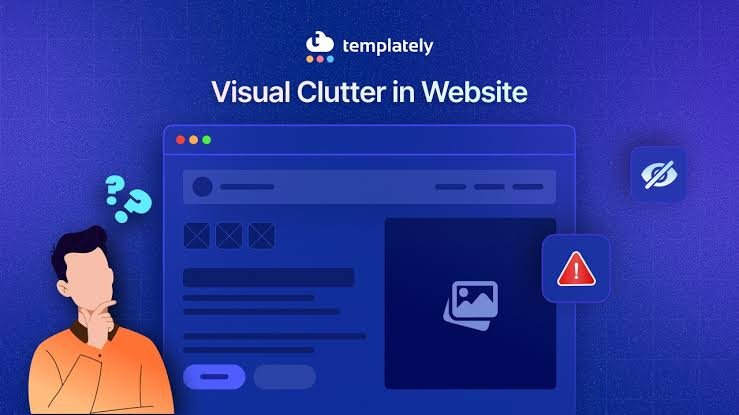
6. The Button Gets Lost in a Cluttered Layout
A button competes with everything around it.
Large images, animated elements, promotional banners, multiple cards, oversized headings, icons, badges, and decorative effects can all pull attention away from the actual action.
Spacing is particularly important. A CTA surrounded by unrelated elements can be harder to distinguish than one with enough breathing room.
A useful layout audit asks:
- What does the eye notice first?
- Can the CTA be identified without reading the entire section?
- Is unrelated content visually competing with it?
- Is the button grouped with the information that explains its purpose?
- Is there enough spacing around it?
If users need to visually search through a crowded section to locate the button, the solution may be a layout change rather than a button redesign.
7. Every Button Looks the Same
Consistency is valuable, but excessive sameness creates another problem.
If the primary CTA, secondary CTA, navigation links, filters, and utility controls all have nearly identical styling, users may struggle to understand their relative importance.
A website should establish a recognizable component system.
For example:
- Primary button = strongest visual emphasis
- Secondary button = lower emphasis
- Text link = lightweight navigation
- Destructive action = clearly distinguished
- Disabled control = visibly unavailable
The goal is not to make every control visually unique. It is to create a predictable relationship between appearance and function.
A related problem is broader UI inconsistency. [INTERNAL LINK: Why Does a Website Look Unprofessional Even With a Modern Design? Common UI Consistency Problems] can help explain why inconsistent component styling affects perceived quality and usability.
8. The Button Is Too Small or Too Close to Other Controls
A button can be visible but still difficult to use.
Small targets are particularly problematic on touchscreens, where users do not have the precision of a mouse pointer. Buttons placed too close together can also increase the chance of selecting the wrong action.
WCAG 2.2’s Target Size (Minimum) criterion specifies a minimum target size of 24 by 24 CSS pixels for pointer inputs, subject to defined exceptions. This is an accessibility minimum, not a recommendation that every button should be exactly that size.
The practical lesson is to provide enough clickable area and separation for comfortable interaction.
This is especially important for paired actions such as:
Submit | Cancel
or:
Delete | Save
Increasing spacing and making the intended primary action visually clear can reduce accidental interactions.
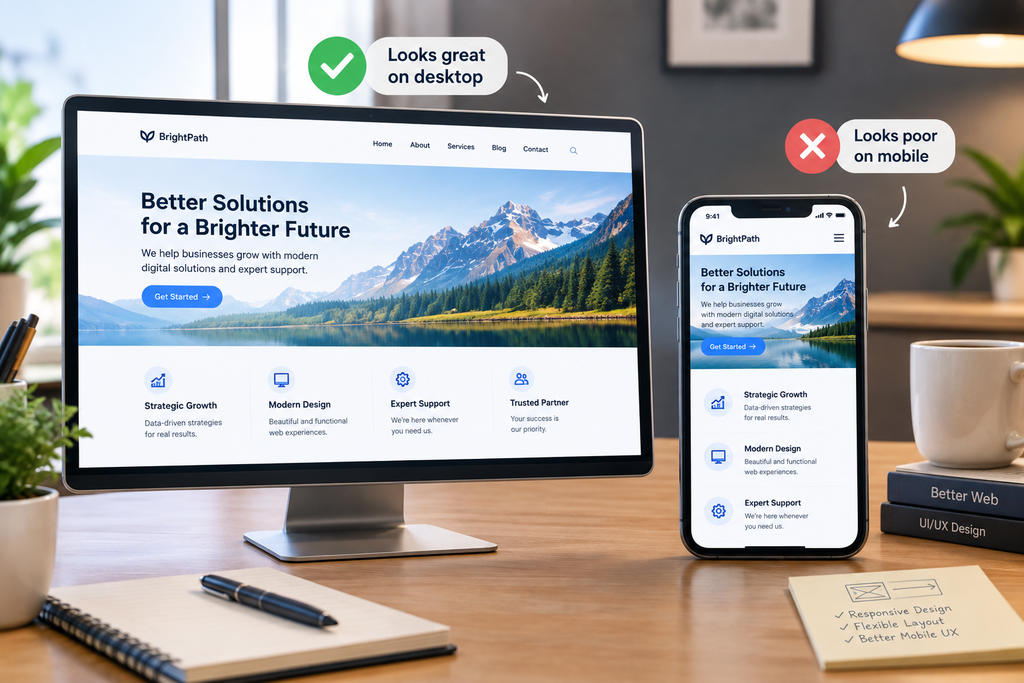
9. Mobile Buttons Are Difficult to See or Tap
A button that works well on desktop may become problematic on mobile.
Responsive layouts can cause:
- Buttons to wrap awkwardly
- Labels to become truncated
- Multiple buttons to become cramped
- CTAs to move far below important content
- Fixed elements to cover buttons
- Buttons to become too small for comfortable tapping
Mobile users also encounter a different interaction environment. They use touch rather than a precise mouse pointer, and screen space is limited.
Buttons should therefore be tested at realistic mobile widths rather than simply viewed in a desktop browser that has been resized.
Pay particular attention to CTA spacing, button width, text wrapping, sticky elements, and the relationship between primary and secondary actions.
10. The Button Has No Clear Focus or Interaction State
A good button needs to communicate more than its default appearance.
Users may encounter buttons in different states:
- Default
- Hover
- Focus
- Active
- Disabled
- Loading
- Completed
Keyboard users particularly need a visible focus indicator. WCAG 2.2 includes requirements concerning focus visibility and focus appearance, including sufficient size and contrast for focus indicators.
Removing the browser’s default focus outline without replacing it with a visible alternative can make keyboard navigation substantially harder.
The same principle applies to loading states. If clicking “Submit” produces no visible feedback, users may wonder whether the action worked and click repeatedly.
11. Icon-Only Buttons Can Be Ambiguous
Icons can save space, but they can also introduce uncertainty.
A magnifying-glass icon may commonly represent search, but less familiar icons can have multiple interpretations. MDN notes that icon-only buttons need an accessible name so assistive technologies can identify their purpose.
For important actions, visible text is often useful even when an icon is included.
For example:
🔍 Search
is generally clearer than an unfamiliar standalone symbol.
Icons should support the action rather than force users to interpret a visual symbol before they can understand what the control does.
How to Fix Website Buttons That Users Ignore
A practical button audit can follow these steps.
Step 1: Identify the most important action
Ask what the visitor is actually supposed to do on the page. Do not begin by changing colors or rounded corners.
Step 2: Remove competing emphasis
Reduce the visual prominence of secondary actions if they compete with the primary CTA.
Step 3: Rewrite vague labels
Replace generic labels with action-oriented descriptions that tell users what they will get or what will happen.
Step 4: Check contrast and states
Test default, hover, focus, disabled, and loading states rather than evaluating only the default design.
Step 5: Review placement
Make sure the CTA appears near the information that establishes its relevance and at appropriate points throughout longer pages.
Step 6: Test mobile interaction
Check button size, spacing, wrapping, sticky elements, and touch usability on narrow screens.
Step 7: Test with real users
Give someone an actual task such as “Find where you would request a quote.” Watch whether they immediately identify the intended action. If they hesitate, do not explain the interface—record the hesitation as evidence that the design needs improvement.
Conclusion
When website buttons get ignored, changing the button color is rarely the complete solution. The real problem may be unclear copy, weak hierarchy, poor placement, visual clutter, inconsistent component styling, insufficient contrast, small touch targets, or a mobile layout that hides the intended action.
The strongest CTA is not necessarily the largest or brightest button. It is the one that appears at the right moment, communicates a clear action, has enough visual distinction, works across interaction states, and fits naturally into the surrounding page hierarchy.
Buttons should therefore be treated as part of the entire user interface rather than isolated design elements. When content, layout, navigation, typography, and interaction patterns work together, important actions become easier to notice—and easier to use.
Let’s Figure It Out.
Tell us what you’re working on and we’ll help you identify the right next step.