A website can contain exactly the information a visitor needs and still feel difficult to use. The problem is often not missing content—it is poor findability. Users struggle when navigation labels are unclear, important pages are buried, layouts lack hierarchy, menus behave differently from page to page, or mobile versions hide too much information.
The practical goal of website navigation is simple: help people understand where they are, what the website contains, and where they should go next. Navigation is broader than the main menu; it can include breadcrumbs, search, filters, related links, footer navigation, and other pathways through a website. Nielsen Norman Group describes navigation as a collection of interface components whose primary purpose is helping users find information and functionality.
If visitors repeatedly have to guess where something is, open several irrelevant pages, or return to the homepage to start over, the website’s information architecture and interface need attention.
Why Do Users Struggle to Find Information on a Website?
Users usually struggle because the website is organized according to the company’s internal structure rather than the visitor’s needs.
For example, a business might organize its website around departments such as “Solutions,” “Resources,” “Capabilities,” and “Corporate.” Those labels may make sense internally, but a visitor may simply be looking for pricing, a specific service, documentation, or contact information.
This is an information architecture problem. Information architecture determines how content is organized and labeled, while navigation provides the interface that allows users to move through that structure. A sitemap can help visualize the hierarchy, but the sitemap itself is only one part of the overall information architecture.
Good navigation therefore starts before the menu is designed. The content needs to be grouped according to recognizable user goals.
Let’s Talk About Your Business
Not sure which approach is right for your business? Get a free consultation with our team.
1. The Main Navigation Uses Unclear Labels
One of the most common website navigation problems is using labels that sound sophisticated but tell visitors very little.
Consider labels such as:
- “Discover”
- “Explore”
- “Solutions”
- “Experience”
- “Resources”
- “Our Approach”
These aren’t automatically bad, but they become a problem when users cannot predict what they will find after clicking them.
A clearer navigation system might use labels such as:
- Products
- Services
- Pricing
- About
- Resources
- Contact
The right wording depends on the website, but the principle is consistent: navigation labels should give users enough information to predict the destination.
This also matters for accessibility. W3C guidance recommends descriptive headings because they help users understand the organization of a page and locate specific content.
How to fix unclear navigation labels
Review every primary navigation item and ask:
- Would a first-time visitor understand this label?
- Does it describe what is actually behind the link?
- Would the visitor use these same words when searching for the information?
- Are similar sections clearly distinguished?
- Could two labels reasonably be interpreted as the same thing?
If visitors have to click around to discover what a menu item means, the label needs improvement.
2. Too Many Navigation Choices Create Confusion
Adding more links does not automatically make information easier to find.
A large website may have hundreds of pages, but placing dozens of links into the primary navigation can make the interface harder to scan. Users have to process more choices before deciding where to click.
The solution is not necessarily to remove useful content. Instead, organize it into logical levels.
For example:
Services → Web Design → E-commerce Web Design
is easier to understand than placing every individual service directly in the primary navigation.
Secondary navigation, dropdowns, category pages, filters, breadcrumbs, and contextual links can provide additional paths without turning the main navigation into a directory.
Nielsen Norman Group’s information architecture research emphasizes navigation and menu structures as important mechanisms for helping people find information efficiently.
3. Important Pages Are Buried Too Deep
A page can technically be accessible while still being difficult to find.
If a visitor needs to go through several unrelated categories before reaching an important page, the site’s hierarchy may be working against them.
This often happens with:
- Pricing pages
- Product documentation
- Contact information
- Shipping information
- Returns policies
- Service details
- Case studies
- Frequently asked questions
Important pages should have sensible pathways from relevant sections.
This does not mean every page needs to appear in the header. Contextual internal links can be more useful than forcing everything into the primary menu.
Google also recommends crawlable links using standard HTML anchor elements with an href, while descriptive anchor text helps people and search engines understand the destination.
4. The Page Layout Does Not Establish a Clear Hierarchy
Navigation problems are not limited to menus.
Users can also struggle to find information because the page itself has poor visual hierarchy. If headings, supporting text, buttons, cards, images, and sections all compete for attention, visitors have difficulty determining what matters.
A strong layout creates a visual path:
Page title → Main point → Supporting information → Relevant action
For content-heavy pages, descriptive headings make it easier to scan and locate a specific section. W3C specifically notes that descriptive headings help users find content and orient themselves within a page.
This is where another common problem becomes relevant: [INTERNAL LINK: Why Do Users Have Trouble Reading Website Content? UI Problems With Typography, Spacing, and Contrast].
Readable typography, adequate spacing, and sufficient contrast don’t merely make a website look better. They affect how easily users can scan and understand the information presented to them.
5. The Website Uses Inconsistent Navigation
Imagine the header has one menu structure on the homepage, another on a service page, and a completely different arrangement inside the blog.
Visitors then have to relearn the interface as they move around the site.
Consistent navigation reduces that cognitive burden. WCAG 2.2 includes a success criterion requiring repeated navigational mechanisms to occur in the same relative order across pages unless the user initiates the change. The intent is to make navigation more predictable.
The same principle applies to familiar controls. If the same function appears in several places, users should be able to recognize it as the same function.
This is particularly important for websites with large numbers of pages, because visitors often enter through internal pages rather than starting at the homepage.
6. Important Actions Disappear Inside the Layout
Sometimes visitors know what they want but cannot find the action that gets them there.
A pricing page may have the pricing information but make the “Get Started” action visually weak. A service page may explain the service but hide the contact option at the bottom. An e-commerce page may contain product information while making the purchase action difficult to identify.
That is both a navigation and interaction problem.
A useful related audit is [INTERNAL LINK: Why Do Website Buttons Get Ignored? UI Problems That Make Important Actions Hard to Notice].
The goal is not to make every button visually dominant. Instead, important actions should have appropriate prominence and appear where users naturally expect them.
7. The Mobile Navigation Hides Too Much
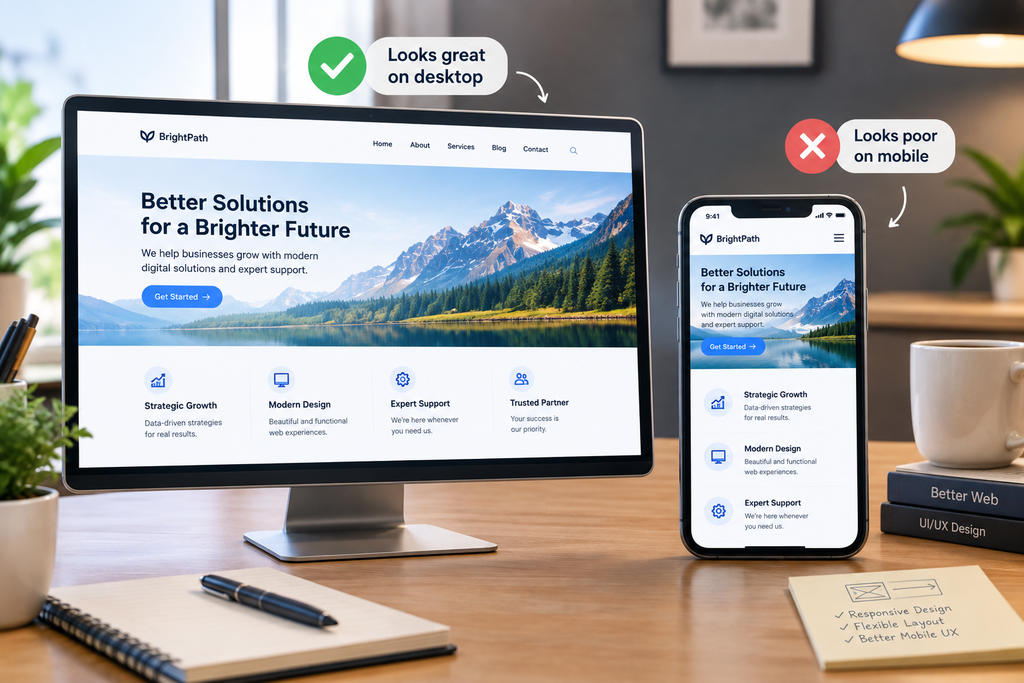
Desktop navigation often has enough horizontal space for several visible categories. Mobile screens do not.
Responsive design therefore requires navigation to adapt without making essential information inaccessible. MDN notes that responsive design allows layouts to adapt to different screen sizes and that multi-column layouts, text sizing, and navigation require special consideration on narrow screens.
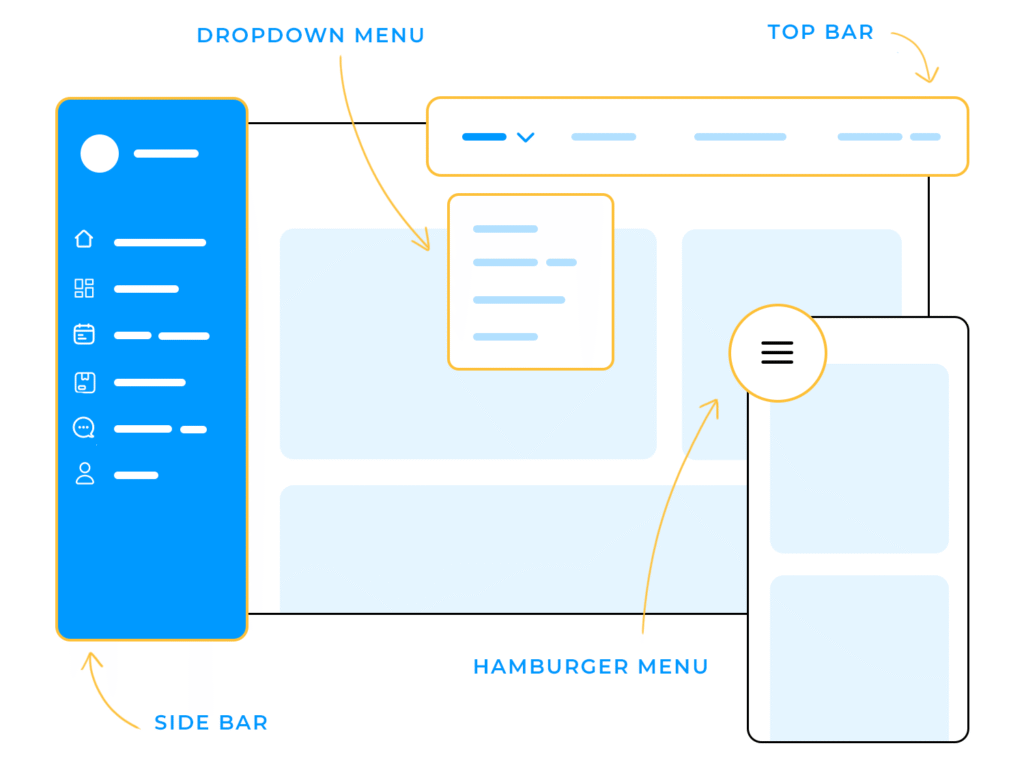
A hamburger menu can be appropriate, but simply placing everything behind an icon does not solve the underlying information architecture problem.
Check whether mobile users can easily access:
- Main product or service categories
- Search
- Account functions
- Contact options
- Important utility links
- Breadcrumbs or other orientation cues
- Primary calls to action
Test the actual mobile experience rather than assuming that a responsive layout automatically provides good mobile usability.
8. Users Have Only One Way to Find Important Content
People do not all navigate websites in the same way.
One visitor may use the main menu. Another may search. Someone else may follow a contextual link from a blog article, use a category page, or arrive directly at a product page from Google.
WCAG’s “Multiple Ways” criterion recommends more than one way of locating a webpage within a set of pages, except where the page is part of a process. W3C explains that different users may find different navigation methods easier or more understandable.
For larger websites, useful discovery mechanisms can include:
- Main navigation
- Site search
- Category pages
- Breadcrumbs
- Related content
- Contextual internal links
- Footer navigation
- Site maps where appropriate
The objective is not to duplicate every link everywhere. It is to provide sensible alternative paths.
9. The Layout Does Not Make Location Obvious
Users should be able to answer a basic question: “Where am I?”
This becomes particularly important on deep websites.
Breadcrumbs can help establish a page’s position within a hierarchy. Section headings can explain what a page contains. Consistent headers and navigation can provide persistent orientation.
For example:
Home → Services → Web Design → E-commerce Design
gives substantially more context than a page that simply displays “E-commerce Design” without indicating how it relates to the rest of the website.
A site map can also provide an alternative view of the site’s hierarchy. Nielsen Norman Group’s research describes well-designed site maps as a way to help users who are lost on crowded websites by showing hierarchy and groupings.
10. Visual Design Makes Everything Compete for Attention
Even a logically organized website can become difficult to navigate when every element looks equally important.
If every card has a strong border, every heading is large, every button is brightly emphasized, and every section contains multiple competing calls to action, users lose visual direction.
Good layout creates priority through:
- Heading size
- Spacing
- Position
- Grouping
- Alignment
- Contrast
- Content density
- Component consistency
The design should answer the visitor’s next question rather than forcing them to inspect every element.
This is also why a website can technically have a modern visual style while still feeling difficult to use. [INTERNAL LINK: Why Does a Website Look Unprofessional Even With a Modern Design? Common UI Consistency Problems].
How to Fix Website Navigation and Layout Problems
A practical audit can be completed in several steps.
Step 1: List the information users actually need
Identify the pages visitors commonly need to reach, such as products, services, pricing, support, contact information, documentation, or policies.
Step 2: Map the current structure
Create a simple hierarchy showing how pages connect. Look for important pages that are isolated, duplicated, or buried under unrelated categories.
Step 3: Review navigation labels
Replace internal terminology with labels that clearly communicate the destination.
Step 4: Test common tasks
Give someone unfamiliar with the website tasks such as:
- “Find the pricing page.”
- “Find information about this service.”
- “Find the return policy.”
- “Contact the company.”
- “Find documentation for this product.”
Watch where they hesitate. Their confusion often reveals problems that are difficult for the website owner to see.
Step 5: Check mobile separately
Do not assume desktop navigation translates automatically to smaller screens. Test menus, scrolling, search, breadcrumbs, buttons, and page hierarchy on actual mobile-sized layouts.
Step 6: Add alternative paths
Use search, contextual links, category pages, breadcrumbs, and related content where they genuinely help users reach important information.
Step 7: Check consistency
Compare several pages side by side. Headers, navigation, repeated controls, labels, and important interface elements should behave predictably.
Conclusion
When users struggle to find what they need on a website, the problem is often deeper than a bad menu. Poor information architecture, unclear labels, excessive choices, buried pages, weak visual hierarchy, inconsistent navigation, inaccessible mobile menus, and limited discovery paths can all reduce findability.
The strongest solution is to design the website around how users look for information, not simply around how the business is organized internally.
Start with the site’s information architecture, make navigation labels understandable, establish a clear page hierarchy, provide alternative ways to reach important content, keep repeated navigation consistent, and test real tasks on both desktop and mobile.
A website succeeds when users can reach the information or action they came for without having to figure out how the website works first.
FAQs
1. Why do users struggle to find information on a website?
Common causes include unclear navigation labels, too many menu choices, buried pages, poor information architecture, weak visual hierarchy, and inconsistent navigation. Mobile layouts can create additional problems when important options are hidden or difficult to access.
2. How can I make my website navigation easier to use?
Use clear labels based on what users are looking for, group related pages logically, keep primary navigation focused, and provide contextual links, search, breadcrumbs, or category pages where useful. Test common tasks with people who are unfamiliar with the website.
3. How many items should be in a website’s main navigation?
There is no universal number that works for every website. The better approach is to include the most important user destinations and organize secondary content into logical categories rather than filling the main navigation with every available page.
4. Why is my website easy to navigate on desktop but difficult on mobile?
Mobile screens have much less space, so navigation often becomes compressed or hidden behind menus. Responsive design should preserve access to important destinations while adapting the layout and controls to smaller screens.
5. Do breadcrumbs help users find information on a website?
Yes, when they accurately represent the site’s hierarchy. Breadcrumbs can show users where the current page sits within broader categories and provide another route back to higher-level content.
6. Can poor website navigation affect SEO?
It can affect how easily users and search engines discover pages. Google recommends crawlable links and descriptive anchor text, while a logical internal-link structure can help connect related pages and make important content easier to discover.
Let’s Figure It Out.
Tell us what you’re working on and we’ll help you identify the right next step.