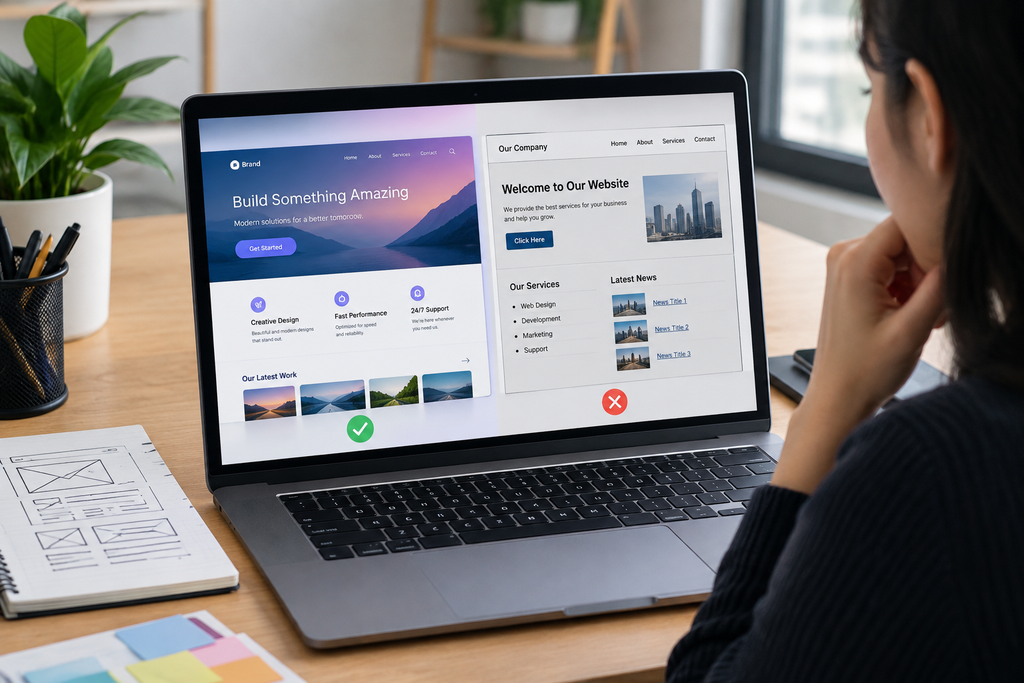
A website can use a modern template, attractive images, gradients, animations, rounded cards, and contemporary typography and still look surprisingly unprofessional. The problem is often not the overall visual style. It is inconsistency.
A button may use one border radius on the homepage and another on the contact page. Headings may use different font sizes without a clear hierarchy. Sections may have unpredictable spacing, colors may vary unnecessarily, and similar components may behave differently from page to page. Each individual choice might seem minor, but together they make the interface feel unfinished.
Professional website design is therefore not simply about using modern visual trends. It is about creating a system in which typography, colors, spacing, components, imagery, navigation, and responsive behavior work together predictably.
W3C’s accessibility guidance specifically recognizes the value of consistent identification: when components perform the same function, users should be able to recognize them consistently across a website. This reduces the effort required to understand and navigate repeated interface elements.
Why Does a Modern Website Still Look Unprofessional?
The most common reason is that the website has been designed section by section instead of as one complete interface system.
A designer may create a hero section, then independently design cards, buttons, forms, testimonials, and blog sections. Each area may look attractive in isolation, but the relationships between them are inconsistent.
Professionalism comes from repetition with purpose.
If all primary buttons share the same visual language, users quickly understand what they represent. If headings follow a predictable hierarchy, visitors can scan pages more easily. If spacing follows a consistent rhythm, sections feel deliberately constructed rather than randomly assembled.
Nielsen Norman Group identifies consistency and standards as a core usability principle because users should not have to wonder whether different words, situations, or actions mean the same thing.
1. Inconsistent Buttons Make the Interface Look Unfinished
Buttons are among the most visible repeated components on a website.
Problems appear when:
- One button has rounded corners while another is square
- Primary buttons use several unrelated colors
- Padding changes between pages
- Some buttons use icons and others do not
- Similar actions have different labels
- Hover and focus behavior varies
- Button text uses different capitalization styles
For example, if “Get Started” is a solid blue button on one page but an outlined green button on another, users may wonder whether the actions have different meanings.
The solution is not to make every button identical. Instead, establish a clear component hierarchy:
Primary button: strongest visual emphasis
Secondary button: lower visual emphasis
Text link: lightweight navigation or supporting action
Buttons that perform the same function should remain recognizable as the same type of control.
This is particularly important when a website has many pages. W3C explains that consistent identification allows users to apply knowledge from one page when they encounter the same functionality elsewhere.
For a deeper look at CTA-specific problems, see [INTERNAL LINK: Why Do Website Buttons Get Ignored? UI Problems That Make Important Actions Hard to Notice].
2. Typography Changes From Page to Page
Typography is another major reason a modern website can look inconsistent.
A website may use one heading font on the homepage, another in the blog, and different font weights throughout product or service pages. Even when each font looks attractive, the combination can make the site feel like several unrelated designs.
A consistent typography system should define at least:
- Body font
- Main heading style
- Subheading styles
- Body text size
- Font weights
- Line height
- Link styling
- Button text styling
- Small supporting text
The goal is not necessarily to use one font everywhere. Two complementary font families can work well. The important point is that their roles remain predictable.
Typography also has a responsive dimension. MDN notes that responsive typography can adapt to available screen space, and media queries can be used to adjust text sizes at different viewport widths.
A heading that looks balanced on desktop may become enormous on mobile, while body text that appears comfortable on a large monitor can become cramped when the layout changes.
3. Spacing Has No Consistent System
Inconsistent spacing is one of the easiest problems to overlook because individual gaps may not look obviously wrong.
The issue becomes visible when comparing sections:
- 24px between one heading and paragraph
- 60px between another heading and paragraph
- 40px above one card
- 90px above another
- Different internal padding inside similar cards
The result is a page that feels visually unstable.
A better approach is to establish a spacing scale and reuse it throughout the interface. The exact values depend on the design, but the relationship between values should be deliberate.
Spacing should also communicate relationships. A heading should generally sit closer to the paragraph it introduces than to the next unrelated section. Related elements should appear grouped, while separate ideas should have enough separation to make the structure obvious.
This is not merely decoration. Consistent spacing contributes to visual hierarchy and helps users understand how content is organized.
Let’s Talk About Your Business
Not sure which approach is right for your business? Get a free consultation with our team.
4. Colors Are Used Without a Clear Role
A modern website does not need many colors to look sophisticated.
Problems begin when different sections introduce unrelated shades for headings, buttons, backgrounds, icons, borders, badges, and links.
A professional color system usually gives colors specific jobs, such as:
- Primary brand color
- Secondary brand color
- Main text
- Muted text
- Background
- Surface/card background
- Border
- Success
- Warning
- Error
This makes the interface predictable.
Accessibility also needs to be considered. WCAG includes minimum contrast requirements for text and important visual distinctions for user interface components. Color choices should therefore be evaluated for both visual hierarchy and accessibility rather than appearance alone.
A useful rule is to avoid introducing a new color simply because a particular section needs visual variety. First ask whether spacing, imagery, typography, or component hierarchy can provide the required distinction.
5. Cards and Components Do Not Follow the Same Rules
Cards are frequently used across modern websites, but inconsistent card design can quickly make a site look assembled from different templates.
Imagine a website where one card has:
- 16px padding
- 12px border radius
- A subtle border
while another has:
- 32px padding
- 24px border radius
- A heavy shadow
If both cards perform similar functions, the difference may feel accidental.
Create component rules for repeated elements such as:
- Cards
- Buttons
- Forms
- Alerts
- Navigation items
- Testimonials
- Pricing blocks
- Blog previews
- Product panels
Components can have variations, but each variation should have a clear purpose.
This is one of the practical benefits of a design system: designers and developers can reuse established patterns instead of inventing a slightly different version each time.
6. Alignment Problems Make a Website Feel Amateur
A page can have excellent colors and typography and still look unprofessional if its elements do not align.
Common examples include:
- Headings starting at different horizontal positions
- Buttons that do not line up with surrounding content
- Cards with inconsistent widths
- Images extending beyond their intended content area
- Sections using unrelated container widths
- Text blocks with inconsistent margins
Alignment creates an invisible structure.
For example, if the hero heading, feature sections, testimonials, and footer content all follow the same content container, the page feels connected. If each section uses a different maximum width, the layout can feel fragmented.
CSS Grid and Flexbox provide modern layout mechanisms for creating structured, responsive layouts. MDN also emphasizes responsive approaches that allow layouts to adapt across different viewport sizes.
7. The Website Has Too Many Visual Styles
Modern design trends often encourage gradients, shadows, glass effects, animations, oversized typography, illustrations, rounded corners, and unusual layouts.
None of these is automatically a problem.
The problem occurs when several visual styles are introduced without a common design language.
For example, a website might have:
- Glassmorphism in the hero
- Flat cards in the next section
- Heavy shadows in testimonials
- Sharp rectangular forms
- Highly rounded buttons
- Different illustration styles
- Multiple unrelated icon sets
Each section may look modern, but the website as a whole lacks cohesion.
A professional interface does not need to avoid visual variety. It needs controlled variety.
8. Navigation Changes Between Pages
Users should not have to relearn a website every time they visit another page.
If the header changes significantly between sections, the logo moves unexpectedly, the navigation labels change, or search appears in different locations, the site becomes harder to understand.
W3C’s guidance on consistent identification explains that repeated functionality should be identified consistently so users can recognize familiar controls and reuse knowledge gained from previous interactions.
Navigation consistency is especially important for visitors who enter directly through search engines rather than beginning on the homepage.
This connects directly with another common problem: [INTERNAL LINK: Why Do Users Struggle to Find What They Need on a Website? Common UI Navigation and Layout Problems].
A website can have excellent individual pages but still feel difficult to use when navigation, labels, and page structures are inconsistent.
9. Mobile Looks Like an Afterthought
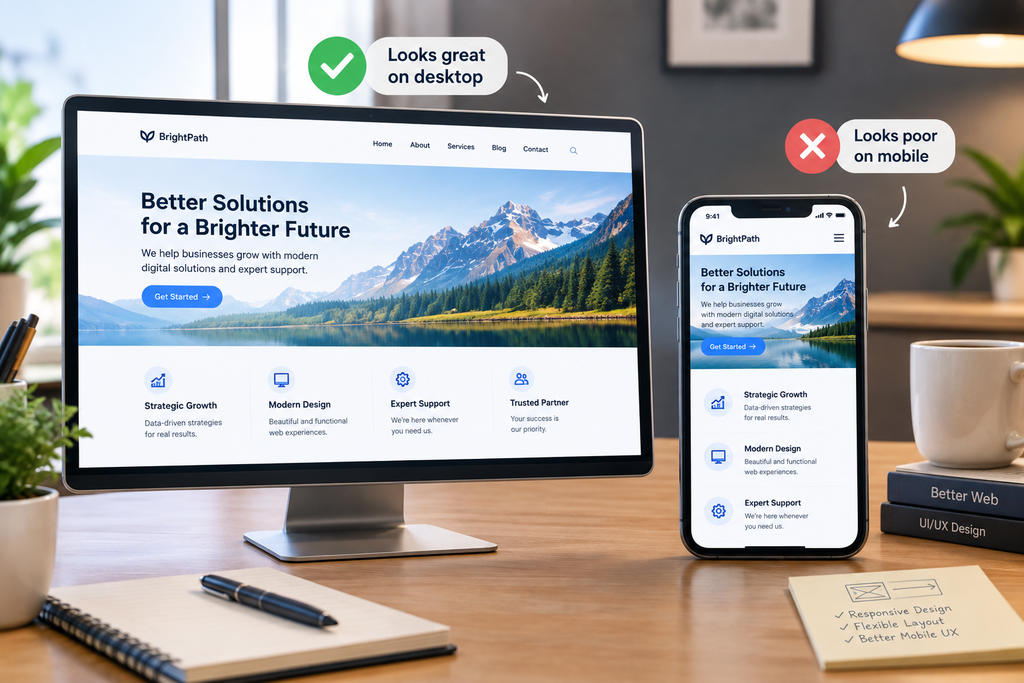
A website can look polished on a large monitor while becoming messy on smaller screens.
Common responsive problems include:
- Headings wrapping awkwardly
- Buttons becoming cramped
- Cards becoming too narrow
- Images overflowing
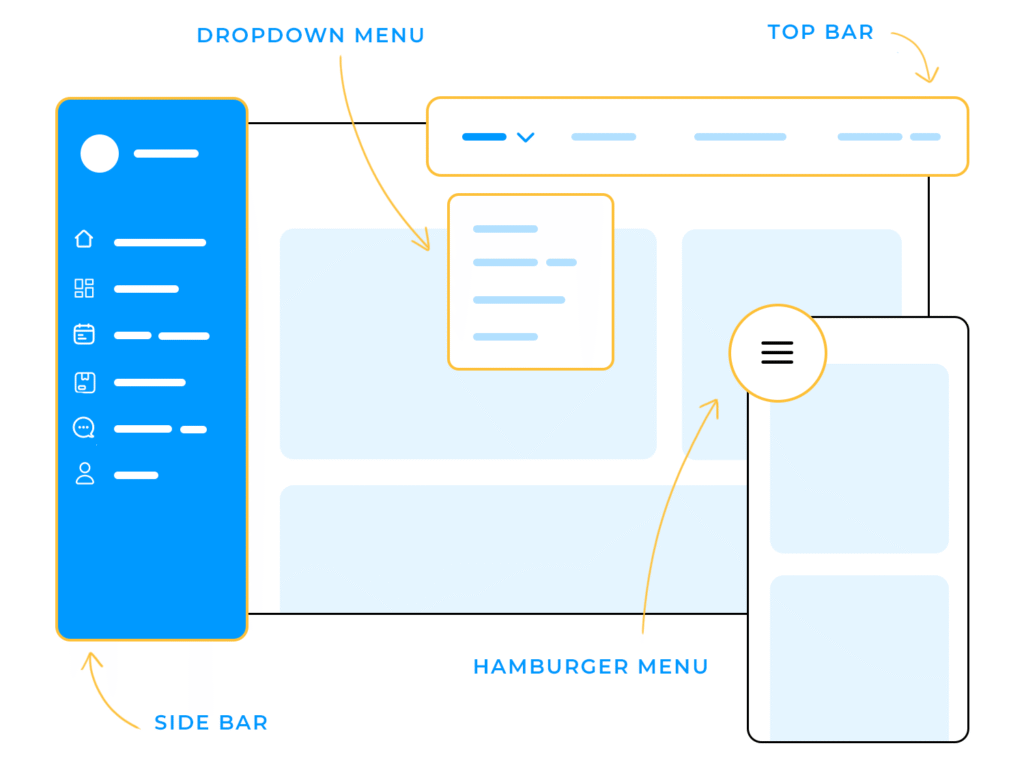
- Navigation becoming difficult to use
- Excessive horizontal spacing
- Text becoming too small
- Fixed elements covering content
Responsive design is not simply shrinking a desktop layout. MDN describes responsive design as an approach that allows layouts to adapt to different device sizes and resolutions, using techniques such as flexible layouts and media queries.
Mobile should therefore be treated as part of the design system from the beginning.
Also consider websites serving languages with different writing directions. CSS logical properties allow layouts to use flow-relative directions instead of assuming that content always moves left to right. This can make interfaces more adaptable to different writing systems.
10. Typography, Spacing, and Contrast Are Fighting Each Other
A website can technically use the correct fonts and colors while still producing a poor reading experience.
For example, large headings may dominate so strongly that supporting information becomes difficult to locate. Tight line spacing can make paragraphs feel dense, while excessive spacing can disconnect related content.
Contrast needs the same balance. Extremely low contrast can make text difficult to read, while excessive contrast between every element can eliminate visual hierarchy.
This is why visual consistency should not be treated as purely aesthetic. [INTERNAL LINK: Why Do Users Have Trouble Reading Website Content? UI Problems With Typography, Spacing, and Contrast].
The goal is to create a system in which typography, spacing, and contrast reinforce the hierarchy rather than competing with it.
How to Make a Modern Website Look More Professional
A useful consistency audit can be completed systematically.
Step 1: Inventory repeated components
List every repeated UI element: buttons, cards, headings, forms, navigation items, icons, badges, and links.
Step 2: Compare them side by side
Look for differences in size, spacing, radius, color, typography, borders, shadows, and behavior.
Step 3: Define component rules
Decide which differences are intentional variations and which are accidental inconsistencies.
Step 4: Create a basic design system
Document colors, typography, spacing, containers, buttons, form controls, and reusable components.
Step 5: Audit every major page
Check the homepage, service pages, product pages, blog, contact page, and other important templates against the same rules.
Step 6: Test responsive layouts
Check several viewport sizes instead of testing only one desktop and one mobile width. Media queries allow designs to adapt styles according to viewport conditions.
Step 7: Remove unnecessary variation
If two components perform the same job, ask whether they really need different visual treatments.
Does a Design System Really Matter for a Small Website?
Yes, although a small website does not need a huge formal design-system document.
Even a simple site benefits from defining:
- One primary button style
- One secondary button style
- A limited color palette
- A predictable typography hierarchy
- A consistent spacing scale
- Standard card and form styles
- A common content width
- Consistent mobile behavior
The objective is not documentation for its own sake. It is preventing the website from slowly accumulating small visual differences as new pages and sections are added.
Conclusion
A website can look modern and still appear unprofessional when its individual design decisions do not form a consistent system.
The biggest problems are usually not dramatic. They are small differences repeated across the interface: inconsistent buttons, unpredictable spacing, mismatched typography, conflicting colors, uneven alignment, different card styles, changing navigation, and responsive layouts that behave differently from page to page.
Professional website design is therefore less about adding more visual effects and more about controlling the relationships between elements.
Audit repeated components, establish clear rules, simplify unnecessary variations, maintain predictable navigation, and test the system across screen sizes. When the interface behaves and looks consistently, the website becomes easier to understand, easier to use, and more credible.
FAQs
1. Why does my website look unprofessional even though the design is modern?
The problem is often inconsistent implementation rather than the overall visual style. Different button styles, typography, spacing, colors, card designs, alignment, and navigation patterns can make individually attractive sections feel like they belong to different websites.
2. What makes a website design look professional?
Professional websites usually have a consistent visual system: predictable typography, spacing, colors, component styles, alignment, navigation, and responsive behavior. The design does not need to be complicated; it needs to be deliberate and consistent.
3. How do I fix inconsistent UI design on my website?
Start by inventorying repeated components such as buttons, cards, forms, headings, and navigation. Compare them across pages, identify accidental variations, and establish reusable rules for colors, spacing, typography, sizing, and component states.
4. Can inconsistent buttons make a website look unprofessional?
Yes. When buttons that perform similar actions have different colors, shapes, sizes, labels, or interaction states without a clear reason, users may have difficulty understanding their relative importance. A consistent button hierarchy makes the interface more predictable.
5. Why does my website look good on desktop but bad on mobile?
Desktop and mobile have different space constraints, so a desktop layout cannot simply be scaled down. Responsive design needs flexible layouts, appropriate breakpoints, readable typography, usable controls, and components that adapt to smaller screens.
6. Does website consistency improve usability?
Yes. Consistent identification allows users to recognize familiar functionality and reuse knowledge from one page on another. W3C specifically identifies consistent identification as a way to make websites easier to learn, navigate, and use.
Let’s Figure It Out.
Tell us what you’re working on and we’ll help you identify the right next step.