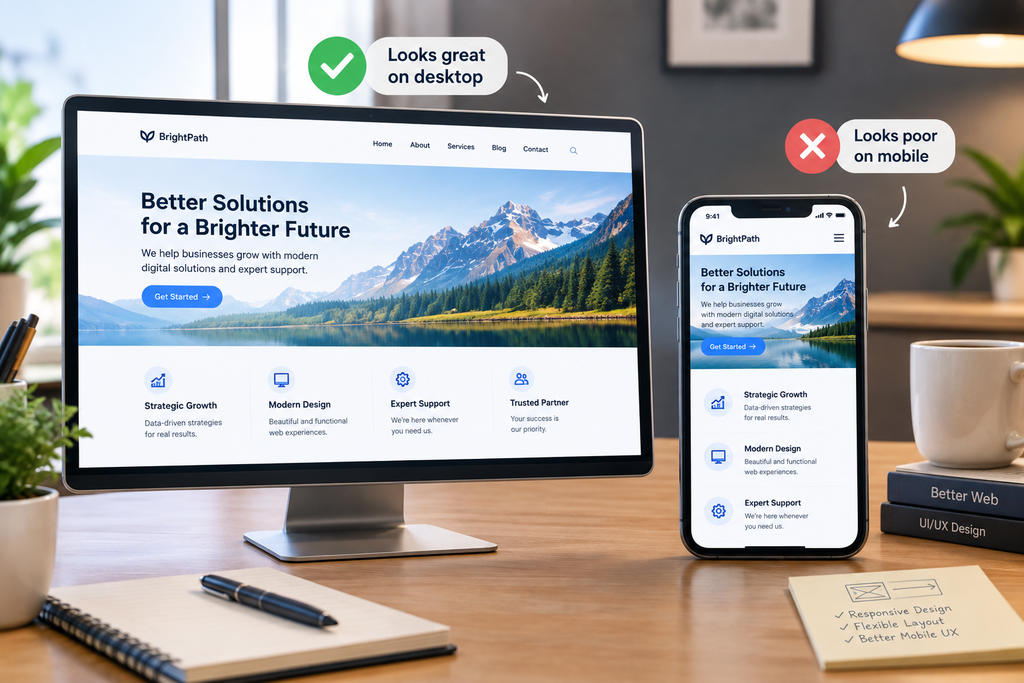
A website can look polished on a large desktop monitor and still feel broken, cramped, or difficult to use on a phone. This happens because a mobile screen does not simply provide a smaller version of the desktop layout. It changes the amount of available space, the way users interact with elements, how content is scanned, and how navigation needs to work.
The most common causes are fixed-width layouts, oversized elements, desktop-focused navigation, poor typography, excessive spacing, incorrectly sized images, horizontal scrolling, intrusive pop-ups, and mobile performance problems.
Responsive web design is intended to address these differences by allowing a website’s layout and content to adapt to different screen sizes. The World Wide Web Consortium (W3C) explains that responsive design allows content to adapt to the user’s device and environment rather than requiring separate designs for every possible device. (w3.org)
If your website looks good on desktop but poor on mobile, the solution is usually not to make everything smaller. You need to identify which parts of the desktop experience fail when the available space becomes limited.
Why Does a Website Look Different on Mobile?
Desktop websites have considerably more horizontal space for navigation, columns, images, forms, and supporting content. A phone has a much narrower viewport and is usually operated with touch rather than a mouse.
That means a desktop layout may need to change substantially on mobile.
A three-column section might become a single-column layout. A horizontal navigation bar might become a menu button. A large image may need a different crop. A multi-column form may need to stack vertically.
If a website was designed primarily around its desktop appearance and mobile adjustments were added later, these transformations may not have been planned properly.
1. Your Website Is Not Properly Responsive
The first thing to check is whether the website actually responds correctly to different viewport widths.
A responsive layout should be able to reorganize content rather than simply shrink the desktop version.
Typical symptoms of poor responsiveness include:
- Text extending beyond the screen
- Horizontal scrolling
- Images overflowing their containers
- Buttons extending outside cards
- Columns becoming too narrow
- Navigation items colliding
- Content disappearing
- Elements overlapping
The W3C recommends designing web content so it can adapt to different viewport sizes and orientations. Responsive design techniques can help content remain usable across different devices. (w3.org)
How to fix it
Review the page at several viewport widths rather than checking only one phone size.
Pay particular attention to sections with grids, tables, forms, navigation, and large media.
2. Your Desktop Layout Uses Fixed Widths
Fixed dimensions are another common reason a website breaks on mobile.
For example, a desktop component may have been given a width that works comfortably on a large screen. When the same component appears inside a narrow mobile viewport, it can overflow.
This problem can affect:
- Content containers
- Images
- Buttons
- Tables
- Cards
- Navigation
- Embedded media
Responsive layouts generally use flexible sizing, appropriate maximum widths, and layouts that can change at defined breakpoints.
The goal is not to eliminate fixed dimensions completely. Some fixed values are useful for icons, controls, and other interface components. The problem occurs when important content cannot adapt to the available space.
Let’s Talk About Your Business
Not sure which approach is right for your business? Get a free consultation with our team.
3. Your Navigation Was Designed for a Mouse
Desktop navigation can accommodate several menu items across the top of a page. A phone cannot.
Trying to squeeze the same navigation into a narrow header can produce tiny text, crowded links, multiple rows, or overlapping elements.
Mobile navigation usually needs a different presentation.
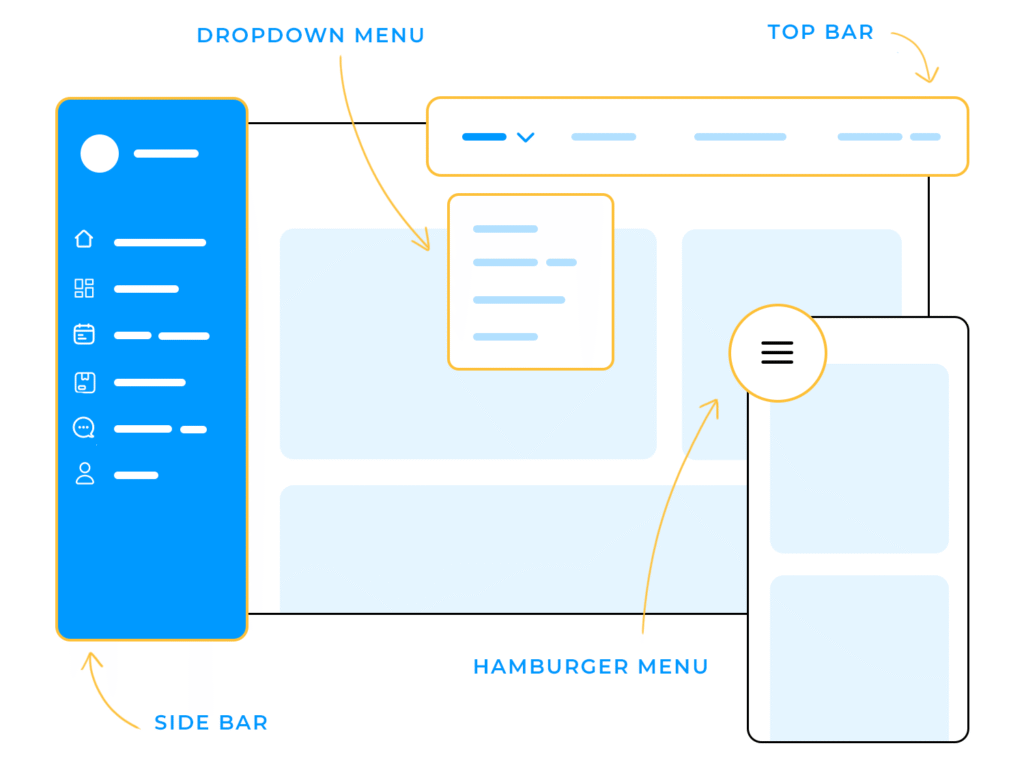
A common pattern is to place primary navigation behind a menu control, allowing the available horizontal space to be reserved for the logo and essential actions.
The important issue is not which navigation pattern you use. It is whether users can easily find the important pages and operate the controls with touch.
The W3C also recommends considering different input methods and designing interactive elements so they remain usable on touch devices. (w3.org)
4. Your Text Is Too Large—or Too Small
Typography that looks impressive on desktop can become problematic on mobile.
A large desktop heading may occupy most of the first screen on a phone, pushing the actual value proposition or CTA much farther down.
The opposite problem also occurs. Developers sometimes reduce mobile text excessively to fit more content on the screen.
Both approaches can hurt usability.
Your mobile typography system should establish appropriate relationships between:
- H1
- H2
- H3
- Body text
- Supporting text
- Buttons
- Navigation
- Form labels
Do not simply reduce every desktop font size by the same percentage. Consider how much text should fit on each line and whether headings still communicate hierarchy.
5. Your Spacing Was Designed for Desktop

Desktop layouts have more room to breathe, so generous spacing can look elegant.
On mobile, the same spacing can become excessive.
For example, a desktop hero might contain a large top margin, a large heading, a paragraph, a button, and a large bottom margin. On a phone, this could consume most of the initial viewport without giving the user enough useful information.
At the same time, reducing every margin too aggressively can make the interface feel cramped.
The solution is to create a deliberate mobile spacing system rather than simply scaling desktop spacing.
If your mobile layout has inconsistent gaps, misaligned elements, or sections that feel cramped, see [INTERNAL LINK: How Can I Fix Poor Spacing, Alignment, and Layout Problems in My Website Design?].
6. Your Images Are Too Large or Poorly Cropped
Images often cause major mobile layout problems.
A wide desktop hero image may work beautifully across a large screen but become unusable when squeezed into a narrow mobile container.
The image may:
- Crop the main subject
- Become too short
- Push important content downward
- Increase page weight
- Distort the visual balance of the section
Responsive images should be selected and displayed according to the available space.
The HTML img element can use responsive image features such as srcset and sizes, allowing browsers to select an appropriate image resource for the display conditions. MDN documents these mechanisms as part of responsive image implementation. (developer.mozilla.org)
Practical fix
Review your hero and content images separately on mobile. Sometimes the correct solution is not simply resizing an image but using a different crop or aspect ratio.
7. Your Buttons Are Difficult to Tap
Desktop users typically click buttons with a mouse or trackpad. Mobile users tap them with a finger.
This changes how interactive elements should be designed.
Problems include:
- Buttons that are too small
- Links placed too close together
- Tiny icons used as controls
- Small menu targets
- Multiple actions positioned too closely
The W3C’s Web Content Accessibility Guidelines include requirements concerning target size for pointer inputs. WCAG 2.2’s enhanced target-size criterion specifies a minimum of 44 by 44 CSS pixels for applicable targets, although that enhanced criterion has exceptions and is distinct from the Level AA target-size minimum. (w3.org)
The broader practical lesson is simple: important mobile controls need enough space to be operated accurately.
8. Your Pop-Ups Are Covering the Content
A desktop pop-up may occupy a manageable portion of a large screen. On mobile, the same pop-up can cover almost the entire viewport.
This is especially problematic when the visitor cannot easily close it.
Common examples include:
- Newsletter pop-ups
- Promotional offers
- Cookie interfaces
- Chat widgets
- App-install prompts
- Full-screen advertisements
Google’s documentation on intrusive interstitials warns that intrusive interstitials can make content difficult for users to access, particularly on mobile. (developers.google.com)
Review every overlay specifically on mobile instead of assuming a desktop version will translate correctly.
9. Your Forms Do Not Adapt to Small Screens
Forms designed for desktop often use multiple columns.
For example:
First Name | Last Name
Email | Phone
This may work on a wide screen but can become cramped on mobile.
A responsive form can stack fields vertically where appropriate.
Input fields should also have clear labels and sufficient space for interaction. The mobile keyboard itself takes up part of the screen, so users should not have to fight the layout while entering information.
Test the complete form process on an actual phone—not just the visual appearance.
10. Your Website Is Too Slow on Mobile
Mobile problems are not purely visual.
A page may look excellent but still provide a poor experience if large images, JavaScript, third-party scripts, fonts, videos, or other resources delay loading and interaction.
Google’s Core Web Vitals provide metrics for loading performance, interactivity, and visual stability. Current Core Web Vitals include Largest Contentful Paint (LCP), Interaction to Next Paint (INP), and Cumulative Layout Shift (CLS). Google recommends measuring these metrics using real-user data where available. (web.dev)
You can use tools such as PageSpeed Insights to investigate performance problems and identify opportunities for improvement.
Do not assume that a fast desktop connection means mobile visitors experience the same performance.
11. Your Design Uses Too Many Desktop-Only Effects
Large animations, hover interactions, background videos, complex parallax effects, and decorative elements can work differently on mobile.
Hover states are a particularly obvious example because phones do not have a traditional mouse hover interaction.
Mobile design should prioritize essential information and interaction.
Ask of every effect:
Does this help the visitor understand or use the page?
If the answer is no, consider removing or simplifying it on smaller screens.
12. Your Color and Visual Hierarchy Change on Mobile
A responsive layout can technically work while still looking visually poor.
For example, a dark desktop section might occupy a small horizontal band, while on mobile it becomes a very tall block because its content stacks vertically.
That can dramatically change the visual balance of the page.
Review:
- Background colors
- Contrast
- CTA visibility
- Section order
- Image-to-text relationships
- Heading hierarchy
- Card density
Your brand colors should remain consistent, but their application may need to change with the layout.
For guidance on establishing a consistent visual system, see [INTERNAL LINK: How Can I Choose the Right Color Palette for a Professional Business Website?].
How to Check Whether Your Website Has Mobile Design Problems

A practical mobile audit can be completed in several stages.
Step 1: Test the homepage
Check the header, hero, first CTA, primary content, and footer.
Step 2: Look for horizontal scrolling
Scroll from left to right. If important content extends beyond the viewport, investigate the element causing the overflow.
Step 3: Test navigation
Open the mobile menu and visit the most important pages.
Step 4: Test forms
Complete contact, signup, search, checkout, or other important forms using a phone.
Step 5: Test buttons and links
Make sure interactive elements are easy to identify and tap.
Step 6: Review images
Check cropping, quality, dimensions, and loading behavior.
Step 7: Check performance
Use PageSpeed Insights and review Core Web Vitals and other performance recommendations.
Step 8: Test multiple screen widths
Do not optimize for one specific phone. A responsive website should adapt to a range of viewport sizes.
Should You Build a Separate Mobile Website?
In most situations, you do not need a completely separate mobile website.
Responsive web design allows a single website to adapt its layout and presentation to different screen sizes. Maintaining separate desktop and mobile sites can introduce additional content, maintenance, and consistency challenges.
A responsive implementation can instead change the layout at appropriate breakpoints while keeping the same underlying content and URL structure.
The important question is therefore not “How do I make my desktop website smaller?”
It is:
“How should this experience be reorganized for a smaller screen and touch interaction?”
Why Does Mobile Design Affect Your Website’s Professional Appearance?
Mobile usability is part of the overall perception of a website.
A business can have an impressive desktop homepage, carefully selected typography, professional photography, and modern branding. If the mobile version has overlapping content, unreadable text, broken navigation, or difficult forms, visitors experience those problems directly.
This is why a website’s visual quality should be evaluated across devices rather than judged only from a desktop monitor.
If the website already feels visually inconsistent on desktop, broader design-system problems may also be contributing. See [INTERNAL LINK: Why Does My Website Still Look Unprofessional Even Though I Have a Modern Design?] for a wider review of typography, spacing, imagery, hierarchy, and interface consistency.
Conclusion
If your website looks good on desktop but poor on mobile, the problem is usually caused by treating mobile as a smaller version of the desktop design.
Responsive websites need layouts that adapt, typography that remains readable, navigation designed for touch, images that respond to available space, appropriately sized controls, mobile-friendly forms, and performance that remains acceptable on smaller devices.
Start by checking the most important user journeys: landing on the homepage, opening navigation, reading the main content, clicking the primary CTA, submitting a form, and completing any key business action.
A strong mobile experience does not require every desktop element to remain exactly the same. It requires the same information and business goals to be presented in a format that works naturally on a smaller screen.
FAQs
1. Why does my website look fine on desktop but broken on mobile?
This usually happens when the layout was designed around desktop dimensions without sufficiently adapting its components for smaller viewports. Fixed widths, oversized typography, desktop navigation, large images, multi-column sections, and poorly configured breakpoints are common causes. Inspect the page for horizontal overflow, overlapping elements, cramped components, and controls that are difficult to tap.
2. How do I make my website mobile responsive?
Use a responsive layout that can adapt to different viewport widths. Flexible containers, responsive images, appropriate breakpoints, scalable typography, mobile navigation, and layouts that stack or reorganize content are common techniques. Test the result at multiple screen widths instead of optimizing only for one phone model.
3. Why is my website slow only on mobile?
Mobile performance can be affected by large images, JavaScript, third-party scripts, web fonts, videos, and other resources. A desktop connection and device may hide these problems. Check your site’s Core Web Vitals and loading performance using tools such as PageSpeed Insights, then investigate the largest contributors to loading and interaction delays.
4. Should mobile website text be smaller than desktop text?
Not necessarily. Mobile text should be sized for comfortable reading and appropriate hierarchy rather than simply being reduced to fit more content. Headings often need to scale between desktop and mobile, while body text should remain readable. Line length, line height, font weight, and surrounding spacing also affect readability.
5. Why do my images look good on desktop but bad on mobile?
Desktop images often use wide aspect ratios that do not translate well to narrow screens. A responsive image can become excessively cropped, lose its focal subject, or occupy too much vertical space. Use responsive image techniques and consider alternative crops or aspect ratios for important hero images when the composition requires it.
6. Do I need a separate mobile website?
Usually, a separate mobile website is not necessary. Responsive web design allows one website to adapt its layout to different screen sizes. A single responsive site can reduce duplication and make content and design changes easier to maintain, provided the responsive implementation is properly designed and tested.
Let’s Figure It Out.
Tell us what you’re working on and we’ll help you identify the right next step.