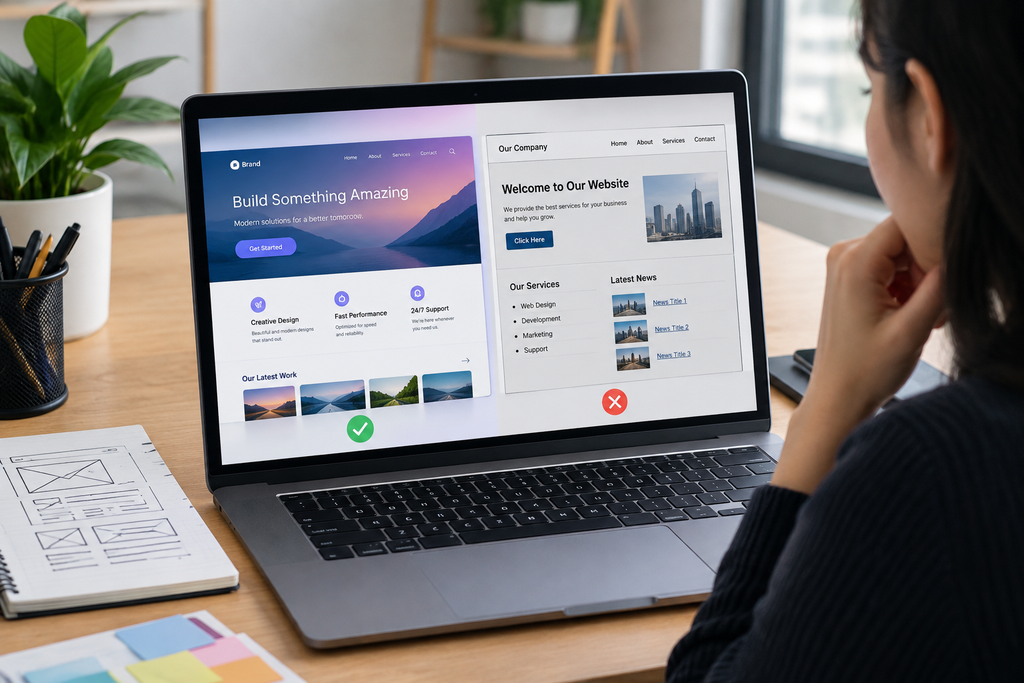
A website can look unfinished even when every section technically works. One page may have huge areas of unused space that make the content feel disconnected, while another may contain so many cards, buttons, images, headings, and paragraphs that visitors do not know where to look first.
The problem is usually not how much content the website has. It is how that content is arranged.
A website looks too empty when content lacks enough visual structure, the content container is unnecessarily narrow, sections are oversized, or important information is not using the available space effectively. A website looks too crowded when there is insufficient spacing, weak hierarchy, excessive content, inconsistent alignment, or too many competing elements.
Fixing the problem requires looking at the layout as a system rather than randomly changing margins or adding more content.
Why Does a Website Look Too Empty?
An empty-looking website is not automatically badly designed. White space is an important part of web design because it separates related and unrelated elements and gives content room to breathe.
The problem starts when the empty space does not appear intentional.
Common causes include:
- An unnecessarily narrow content container
- Excessive section padding
- Very short sections with large minimum heights
- Too few visual elements
- Weak content hierarchy
- Large gaps between unrelated sections
- Images that are too small
- Hero sections that occupy excessive vertical space
- Content that has not been organized into useful groups
For example, imagine a homepage with a large hero area containing only one short sentence and a button. If the hero has excessive top and bottom padding, most of the screen may appear empty even though the section technically contains everything it needs.
The solution is not necessarily to add another paragraph. Reducing unnecessary height or strengthening the visual relationship between the heading, supporting copy, image, and CTA may solve the problem.
Why Does a Website Look Too Crowded?
A crowded website has the opposite problem: too many visual elements compete for attention or there is not enough space between them.
Typical causes include:
- Too many sections on one page
- Long paragraphs with little separation
- Excessive navigation links
- Too many buttons
- Cards packed tightly together
- Inconsistent margins and padding
- Multiple competing font styles
- Images placed without a clear purpose
- Poor content grouping
- Narrow containers containing too much information
Crowding can also happen when a designer tries to prevent empty space by filling every available area.
That approach usually makes the page harder to scan. Empty space is not wasted space when it helps users distinguish a heading from its paragraph, one card from another, or one section from the next.
Let’s Talk About Your Business
Not sure which approach is right for your business? Get a free consultation with our team.
Start by Checking the Content Container
One of the first things to inspect is the maximum width of your main content.
If the container is too narrow on a large desktop screen, the website may appear empty on both sides while the actual content is compressed into a small central column.
If it is too wide, paragraphs and other content can spread excessively across the screen, reducing the visual structure of the page.
A container should therefore provide enough width for the content without allowing text and interface elements to become unnecessarily stretched.
This is especially important for content-heavy pages. The ideal width for a blog article, dashboard, product grid, and marketing homepage will not necessarily be the same.
Before changing individual margins, inspect the overall container.
Use Whitespace to Separate Relationships
Whitespace should communicate relationships.
A small gap can indicate that two elements belong together. A larger gap can signal that one section has ended and another has begun.
For example:
Heading
Small gap
Supporting paragraph
Moderate gap
CTA button
makes the button feel connected to the content above it.
Compare that with:
Heading
Very large gap
Paragraph
Very large gap
Button
The same content may suddenly feel disconnected even though nothing has technically been removed.
This is why fixing a website’s layout is not simply a matter of “adding more whitespace.” The spacing needs to reflect the relationship between elements.
If you are also dealing with inconsistent margins, padding, or alignment, see [INTERNAL LINK: How Can I Fix Poor Spacing, Alignment, and Layout Problems in My Website Design?] as a related layout audit.
Create a Consistent Spacing System
One of the most common reasons a website feels visually unbalanced is inconsistent spacing.
A heading might have 24px beneath it in one section, 60px in another, and 35px somewhere else without a clear reason. Individual sections may look acceptable, but the entire page feels improvised.
Instead, establish a small set of spacing values and reuse them.
For example, your design system might distinguish between:
- Small spacing for related elements
- Medium spacing between components
- Large spacing between major sections
The exact values depend on the design. What matters is consistency and hierarchy.
CSS’s box model is particularly important here because margin and padding do different jobs. Padding creates space inside an element’s box, while margin creates space outside it. Understanding this distinction makes layout debugging much easier.
Group Related Content Instead of Adding More Elements
A crowded page often becomes easier to understand when related information is grouped.
Suppose a service section contains:
- A heading
- A paragraph
- Three benefits
- A button
- An image
If these elements are scattered across the entire section, the page can feel disorganized.
A stronger structure might place the heading and paragraph together, group the benefits into a compact list, and position the CTA near the relevant content.
The content has not necessarily changed. The relationship between the content pieces has changed.
This is one reason visual hierarchy matters more than simply counting how many elements appear on a page.
Fix Visual Hierarchy Before Adding More Design
When every heading, button, card, image, and paragraph appears equally important, the page can feel crowded even if there is plenty of whitespace.
Visual hierarchy tells visitors where to look first, second, and third.
You can establish hierarchy through:
- Heading size
- Font weight
- Position
- Contrast
- Spacing
- Image scale
- Component size
- Button prominence
Typography is particularly important because different typefaces and font sizes occupy different amounts of space.
If your typography system is inconsistent, review [INTERNAL LINK: How Many Fonts Should a Website Use, and How Can I Choose the Right Typography?] before making major layout changes.
A heading that wraps unexpectedly, for example, can make an otherwise balanced section much taller.
Check Whether Your Grid Is Doing Too Much
Cards and columns can make a page easier to scan, but too many columns can create visual clutter.
A common mistake is trying to place every service, feature, testimonial, or product into a dense grid simply because the available screen width allows it.
The better question is:
Does this grid make the information easier to understand?
CSS Grid is designed for two-dimensional layouts involving rows and columns, while Flexbox is primarily a one-dimensional layout model for arranging items in a row or column.
Use the layout method that matches the relationship between the elements instead of forcing every component into the same structure.
For example, a group of related product cards may benefit from a grid, while a navigation bar or button group may be better handled with flexbox.
Avoid Using Fixed Heights to Create “Perfect” Sections
Fixed heights can be responsible for both empty and crowded layouts.
If a hero section has a fixed height that is much larger than its content, it may create a large empty area on desktop.
On smaller screens, the same fixed height can become a problem when text wraps onto additional lines.
Content-driven sizing is usually safer when the amount of content can vary.
Instead of forcing every section to have exactly the same height, allow content, padding, and responsive rules to determine the required space.
This becomes particularly important for responsive design because the same content does not occupy the same amount of space on every screen.
Review Your Images and Visual Assets
Images can also make a layout appear either empty or crowded.
An image that is too small relative to its surrounding content may leave a large unused area. An oversized image can dominate the section and push important content below the fold.
Check whether each image has a clear purpose:
- Does it explain the product?
- Does it demonstrate a service?
- Does it establish brand identity?
- Does it support the surrounding message?
- Does it provide useful context?
If the answer is no, adding another image may make the page busier without making it better.
The same principle applies to decorative icons, illustrations, badges, and background graphics.
Use Alignment to Create Structure
Alignment creates invisible lines that help users understand a page.
If the left edge of the hero heading, section headings, paragraphs, cards, and footer content all follows a consistent container, the page feels organized.
When each section begins at a different horizontal position without a clear design reason, the website can feel messy even if its individual components look attractive.
CSS provides common alignment mechanisms across layout systems, including Flexbox and Grid. Using these systems consistently is usually more reliable than manually positioning elements with arbitrary offsets.
Check the left and right edges of major elements first. Many apparent spacing problems are actually alignment problems.
Make the Layout Responsive Instead of Shrinking Everything
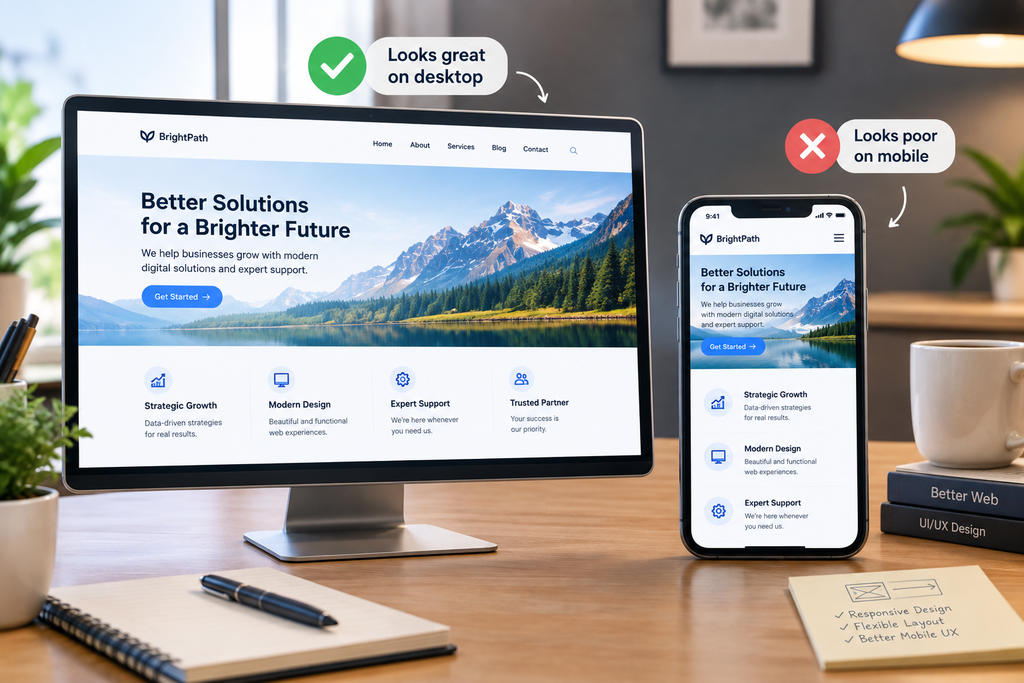
A layout that looks balanced on a desktop monitor can become crowded on mobile if the same structure is simply compressed.
Mobile layouts often need changes to:
- Column count
- Section padding
- Font sizes
- Image dimensions
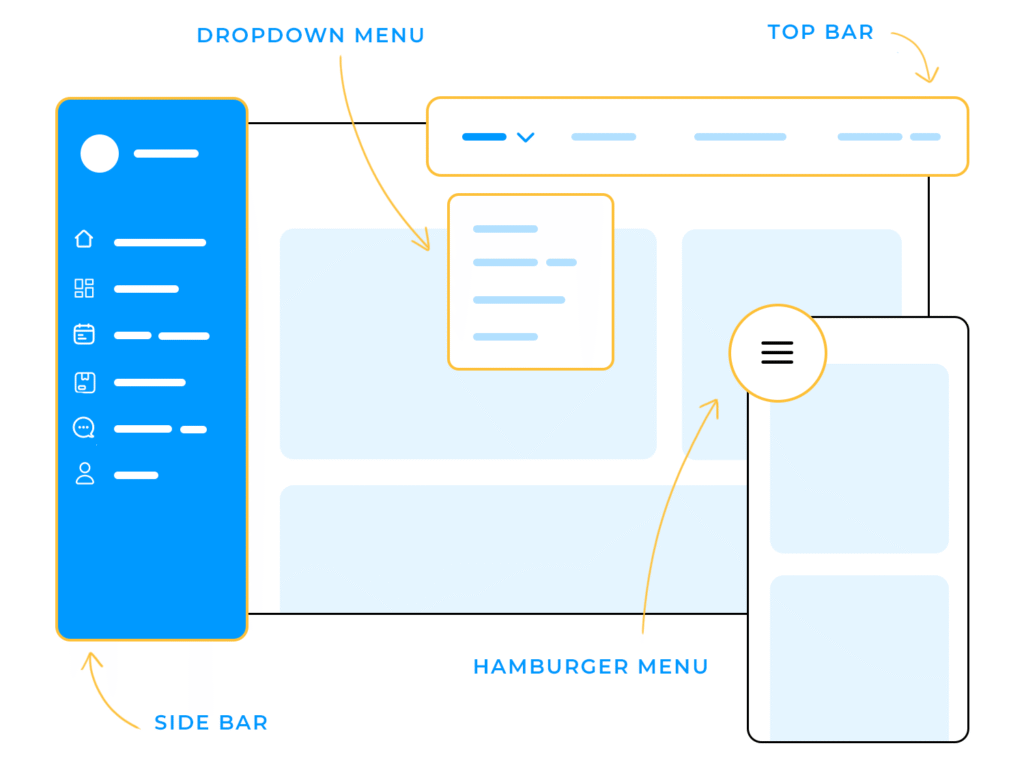
- Navigation
- Button arrangement
- Card layout
- Content order
Do not judge responsiveness only by whether everything technically fits.
A page can fit within the viewport and still feel crowded because headings wrap badly, buttons sit too close together, or content has insufficient separation.
WCAG guidance also emphasizes reflow and the ability for content to remain usable when text is enlarged. Responsive layout should therefore accommodate changes in content size rather than assuming one fixed visual arrangement.
Use a Simple Layout Audit Before Redesigning the Page
Before changing your entire design, inspect the page in this order:
1. Check the container
Is the main content unnecessarily narrow or excessively wide?
2. Check section heights
Look for sections with large empty areas caused by unnecessary fixed heights or padding.
3. Check spacing
Identify unusually large or small gaps between related elements.
4. Check alignment
Look for headings, cards, images, and text blocks that do not follow the same visual grid.
5. Check hierarchy
Can someone immediately identify the page’s main heading, primary action, and major sections?
6. Check content density
Remove duplicated information before adding more design elements.
7. Check typography
Look for oversized headings, excessive font styles, poor line height, and awkward wrapping.
8. Check mobile
Review the same page at smaller widths and with larger text.
This process prevents you from treating symptoms instead of causes.
How Do You Know When the Layout Is Balanced?
A balanced website does not necessarily have equal amounts of content or equal amounts of whitespace everywhere.
Instead, the layout should make relationships clear.
Ask:
- Is the most important information visually prominent?
- Are related elements grouped together?
- Are major sections clearly separated?
- Do headings align consistently?
- Is content given enough room to breathe?
- Are there areas that feel empty without serving a purpose?
- Are there sections that contain more information than users need at once?
- Does the layout remain usable on smaller screens?
If the answers are mostly yes, the website does not need to be filled simply because some areas contain whitespace.
Conclusion
A website that looks too empty or too crowded usually has a layout system problem rather than a simple content problem.
Too much empty space can come from oversized sections, narrow containers, weak hierarchy, or unnecessary padding. Crowding can come from excessive content, inconsistent spacing, poor grouping, too many visual elements, or weak alignment.
The most reliable approach is to audit the structure from the outside in: check the container, section heights, spacing, alignment, hierarchy, typography, content density, and responsive behavior.
Good website layout is not about filling every blank area or removing everything that looks busy. It is about creating enough structure for visitors to understand what belongs together, what deserves attention, and where they should go next.
FAQs
1. Why does my website look empty even though it has enough content?
A website can look empty when the content is confined to a narrow container, sections have excessive padding or fixed heights, images are undersized, or the visual hierarchy is weak. Before adding more content, check whether the existing content is using the available space effectively and whether related elements are grouped together.
2. How much whitespace should a website have?
There is no single correct amount of whitespace for every website. The appropriate amount depends on the content, component, screen size, and hierarchy. Smaller gaps generally work well between closely related elements, while larger gaps can separate major sections. The important issue is whether the spacing communicates relationships rather than whether the page contains a particular number of pixels.
3. Why does my website look crowded on mobile?
Desktop layouts often contain multiple columns, large navigation menus, wide cards, and horizontal groups that cannot maintain the same structure on a narrow screen. Mobile layouts may need fewer columns, different spacing, adjusted typography, reordered content, and different navigation behavior. Simply shrinking the desktop design often creates cramped interfaces.
4. Should every section of a website have the same amount of spacing?
No. Equal spacing everywhere can actually weaken hierarchy. Closely related elements should generally be grouped more tightly, while major sections can have more separation. A consistent spacing system is useful, but consistency does not mean every gap must be identical.
5. How can I make a crowded website look cleaner without removing important content?
A website can look empty when the content is confined to a narrow container, sections have excessive padding or fixed heights, images are undersized, or the visual hierarchy is weak. Before adding more content, check whether the existing content is using the available space effectively and whether related elements are grouped together.
6. Is whitespace bad for website SEO?
Whitespace itself is not inherently bad for SEO. Search engines evaluate many aspects of a page, while whitespace primarily affects presentation, readability, hierarchy, and user experience. The practical concern is whether excessive empty space pushes important content unnecessarily far down the page or whether the page’s structure makes the content difficult for users to understand. A visually clean layout can still contain substantial, useful content.
Let’s Figure It Out.
Tell us what you’re working on and we’ll help you identify the right next step.