Poor spacing, inconsistent alignment, and a disorganized layout can make an otherwise modern website look unfinished. A page may contain attractive colors, professional images, and a contemporary template, yet still feel wrong because headings do not line up, sections have inconsistent gaps, cards have different padding, or content appears randomly positioned.
These problems are usually not solved by adding more decoration. They require a consistent layout system.
The CSS box model is fundamental to this process because every element is laid out using areas such as content, padding, border, and margin. Understanding how those areas interact makes it much easier to identify why an element appears too close, too far away, or incorrectly sized.
A good website layout should make relationships between elements obvious. Related content should feel connected, unrelated sections should have enough separation, and important elements should follow predictable alignment patterns.
What Are Poor Spacing and Alignment Problems?
Website spacing problems occur when the amount of empty space around or inside elements is inconsistent or inappropriate.
Common examples include:
- Headings sitting too close to paragraphs
- Sections having dramatically different vertical gaps
- Cards using different internal padding
- Buttons positioned at inconsistent distances
- Content touching the edges of containers
- Large unexplained empty areas
- Elements appearing crowded despite having available space
Alignment problems occur when elements that should share a visual edge do not.
For example, the heading in one section may begin 80 pixels from the left edge while the next section begins at 100 pixels. Individually, both sections may look acceptable, but the page lacks a clear visual structure.
CSS provides dedicated alignment mechanisms through Flexbox, Grid, and the broader CSS Box Alignment system, allowing elements to be aligned consistently within their containers.
1. Start by Identifying the Actual Problem
Before changing CSS values, determine whether the problem is spacing, alignment, sizing, or the underlying layout.
Take a screenshot of the page and look at it without focusing on individual components.
Ask:
- Do major sections share the same left and right boundaries?
- Are headings aligned with the content below them?
- Are similar cards the same width?
- Are vertical gaps consistent?
- Is there enough space between unrelated sections?
- Are some elements centered while others appear randomly offset?
- Does the page have a clear visual flow?
This audit prevents a common mistake: fixing individual elements without addressing the system causing the inconsistency.
For example, if five sections have different horizontal padding because each was built independently, changing one section’s margin will not solve the broader problem.
2. Establish a Consistent Content Container
One of the most effective ways to improve website alignment is to establish a consistent content container.
A container controls the maximum width of the main content and keeps important sections aligned.
For example, your website might use a centered content area with a maximum width while allowing the background of each section to extend across the full viewport.
This creates two separate layers:
Full-width section background
→ Consistent inner content container
This pattern is common because it allows visual backgrounds to span the page while keeping text, cards, images, and buttons aligned.
Without a shared container, every section may develop its own left and right boundaries.
What to check
Compare the left edge of:
- Main headings
- Paragraphs
- Navigation content
- Cards
- Images
- Forms
- Footer columns
If important elements repeatedly start at different horizontal positions without a design reason, your container system probably needs attention.
Let’s Talk About Your Business
Not sure which approach is right for your business? Get a free consultation with our team.
3. Understand Margin vs. Padding
Many spacing problems come from treating margin and padding as interchangeable.
They are not.
Padding creates space between an element’s content and its border.
Margin creates space outside the element and separates it from neighboring elements.
MDN describes the CSS box model as consisting of content, padding, border, and margin areas.
Consider a card containing a heading and paragraph.
If the text feels too close to the card’s border, you probably need more padding.
If two cards are too close to each other, you may need more margin or a container-level gap.
This distinction matters because changing the wrong property can create additional layout problems.
4. Create a Spacing System Instead of Random Values
A common website design problem is using arbitrary spacing values everywhere.
One section might use 37px, another 53px, another 72px, and another 91px. There may be no obvious relationship between them.
You do not necessarily need every gap to be identical. You need the values to follow a recognizable system.
For example, you might establish a scale based on a small set of spacing units:
- Small: 8px
- Medium: 16px
- Large: 24px
- XL: 32px
- XXL: 48px
- Section spacing: 64px or more
These numbers are an example of a system, not a universal requirement. The actual values should be determined by your typography, components, viewport sizes, and design requirements.
The important principle is to stop selecting spacing independently for every element.
5. Fix Vertical Rhythm Between Headings and Content
Vertical rhythm refers to the consistent spacing relationships that guide users down the page.
One common mistake is giving a heading a large bottom margin while giving the next paragraph a separate large top margin. Depending on the layout and CSS rules, those margins may interact in unexpected ways.
Instead, define predictable relationships between content types.
For example:
Section heading → short gap → supporting paragraph → moderate gap → CTA
Then use the same relationship throughout similar sections.
This makes the page feel structured even when the content changes.
If a heading is visually associated with the paragraph beneath it, the gap should communicate that relationship. A much larger gap may make the paragraph appear to belong to another section.
6. Use Grid and Flexbox for Alignment
Modern CSS provides layout systems specifically designed for structured alignment.
Flexbox is designed for one-dimensional layouts and allows child elements to grow, shrink, and align within a container. CSS Grid is particularly useful for two-dimensional arrangements involving rows and columns.
Use these systems instead of manually positioning every element.
For example, a services section containing three cards can use a grid to establish consistent columns and gaps.
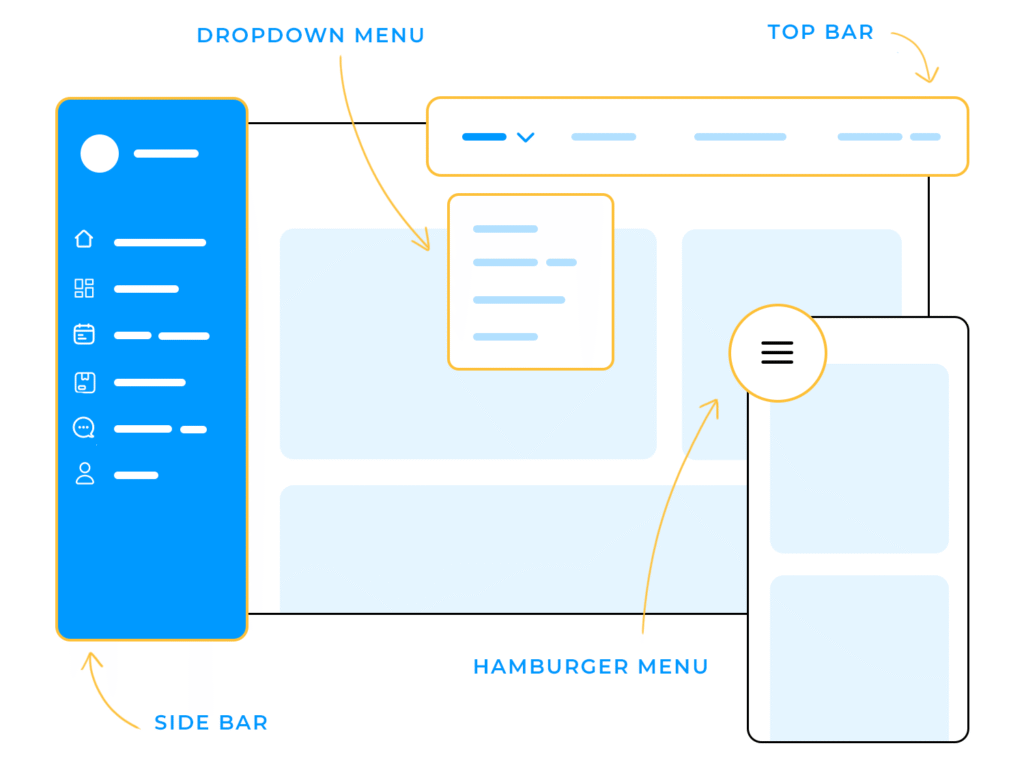
A navigation bar can use Flexbox to control the relationship between the logo, navigation links, and action button.
Manual positioning can work for special decorative elements, but building the entire website around arbitrary offsets makes responsive behavior harder to maintain.
7. Make Similar Components Follow the Same Rules
Cards are a frequent source of layout inconsistency.
Imagine three service cards:
- Card A has 24px padding
- Card B has 32px padding
- Card C has 20px padding
Their content may technically fit, but the row can look uneven.
Similar components should generally share:
- Width rules
- Padding
- Border treatment
- Border radius
- Heading spacing
- Button positioning
- Internal gaps
This does not mean every card must have identical content. It means the underlying component structure should remain predictable.
The same principle applies to buttons, form fields, navigation items, pricing boxes, testimonials, and other repeated UI components.
8. Fix Uneven Card Heights Carefully
Cards with different amounts of text naturally produce different content heights.
For example, one service description may require two lines while another requires five.
Do not automatically force every card to a fixed height just to make the row look even.
A better approach may involve:
- Consistent internal padding
- Flexible content areas
- Grid or Flexbox alignment
- Consistent button placement
- Reasonable text lengths
If equal-height cards genuinely improve the interface, use a layout system that handles the relationship rather than manually assigning arbitrary heights to every card.
Fixed heights can cause content clipping or overflow when text changes.
9. Improve Horizontal Alignment
Horizontal alignment is one of the fastest ways to make a page feel organized.
Look for vertical lines running through the page.
For example, your hero heading might begin at one position, while the next section begins slightly farther to the left. The testimonial section may start somewhere else again.
When there is no intentional reason for these shifts, establish shared container and padding rules.
You should also check alignment inside components.
A card’s icon, heading, description, and button should have a deliberate relationship rather than appearing independently positioned.
CSS Box Alignment provides standardized mechanisms for controlling alignment and distribution across layout systems.
10. Do Not Center Everything
Center alignment is useful, but using it everywhere can weaken hierarchy.
For example, a marketing hero might benefit from centered content, while a detailed services section may be easier to scan with left-aligned text.
Forms, tables, long paragraphs, and navigation elements often benefit from clear directional alignment.
The question should not be:
“Does centered look modern?”
Instead ask:
“Does this alignment make the content easier to understand?”
Alignment should support the purpose of the section.
11. Control Your Text Width
A common layout mistake is allowing text to become too wide.
A paragraph stretching across an entire desktop screen can be difficult to scan even if the surrounding layout is perfectly aligned.
Set a reasonable maximum width for long-form text.
This is particularly important for:
- Blog articles
- Documentation
- Product descriptions
- Service explanations
- FAQ answers
- Legal information
Shorter line lengths can make text easier to follow, while headings may require different width constraints to maintain a strong visual hierarchy.
The goal is not to make every text block the same width. Different content types can have different maximum widths within the same overall grid.
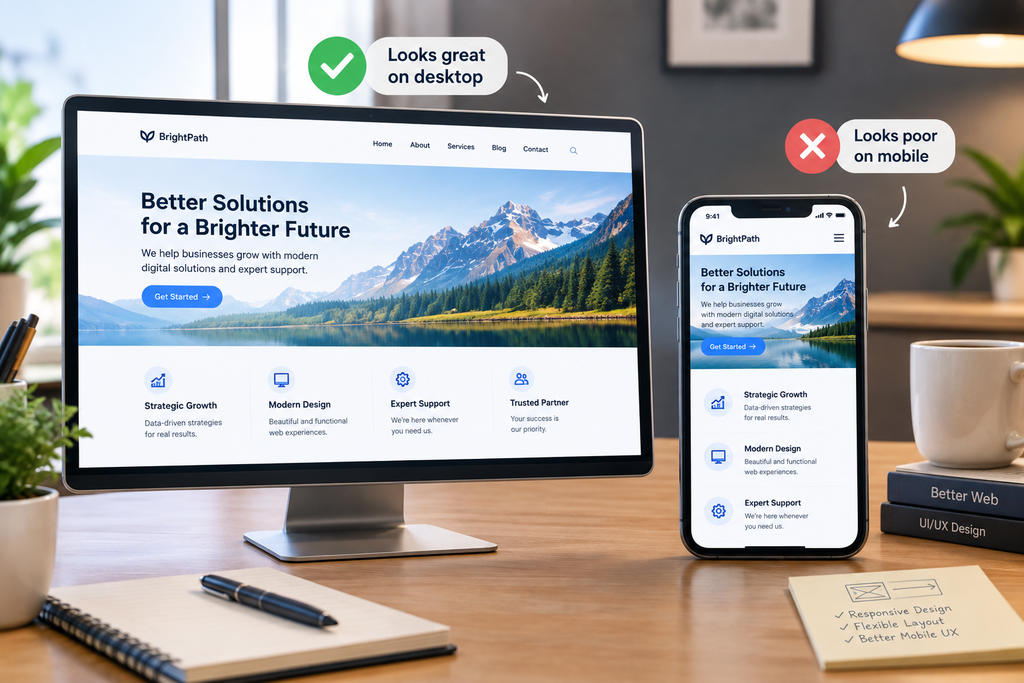
12. Check Responsive Spacing
A spacing system that looks excellent on desktop may become excessive on mobile.
A 96px section gap may feel appropriate on a large screen but consume a significant portion of a phone’s viewport.
Responsive design therefore requires more than reducing the width of containers.
Review:
- Section padding
- Card gaps
- Heading margins
- Image spacing
- Button spacing
- Navigation spacing
- Content width
W3C’s WCAG Reflow guidance requires content to remain usable without two-dimensional scrolling at a 320 CSS-pixel viewport for applicable content.
This makes responsive layout testing an important part of spacing and alignment work.
If your website looks polished on desktop but breaks down on smaller screens, also consider whether the underlying responsive system needs improvement.
13. Review Typography Before Changing Everything Else
Spacing problems are sometimes actually typography problems.
A heading with an unusually large line height may create excessive vertical space.
A paragraph with a narrow width may wrap onto many lines and make a section appear too tall.
A button with excessive line height or padding may look vertically misaligned.
Typography, spacing, and layout therefore need to be reviewed together.
If your website uses inconsistent font sizes, weights, line heights, and heading structures, review [INTERNAL LINK: How Many Fonts Should a Website Use, and How Can I Choose the Right Typography?] before making dozens of spacing adjustments.
14. Check Your Color and Visual Hierarchy
Spacing is also affected by visual emphasis.
A brightly colored block may appear more visually dominant than a neutral block of the same physical size.
Likewise, borders, shadows, large typography, and images can change how users perceive space.
A consistent color system can therefore make spacing decisions easier because visual emphasis becomes more predictable.
If your colors are inconsistent or competing for attention, review [INTERNAL LINK: How Can I Choose the Right Color Palette for a Professional Business Website?].
15. Use Browser DevTools to Find the Real Cause
Do not rely entirely on visual guessing when fixing layout problems.
Browser Developer Tools can show:
- Element dimensions
- Margin
- Padding
- Borders
- Computed styles
- Flexbox behavior
- Grid structure
- Overflow
- Positioning
- Responsive viewport behavior
MDN specifically recommends using browser developer tools to inspect the box model and understand the actual size, margin, padding, and border of an element.
For example, if a section appears 40px farther from another element than expected, inspecting the affected elements can reveal whether the space comes from margin, padding, line height, grid gap, or another rule.
A Practical Website Layout Fixing Process
Instead of changing dozens of CSS values at once, work systematically.
Step 1: Audit the page
Identify every obvious spacing and alignment inconsistency.
Step 2: Establish the main container
Create consistent maximum-width and horizontal-padding rules.
Step 3: Define spacing tokens
Choose a manageable set of reusable spacing values.
Step 4: Standardize components
Make cards, buttons, forms, and navigation follow consistent rules.
Step 5: Fix typography
Review heading sizes, line heights, text widths, and margins.
Step 6: Rebuild problematic layouts
Use Grid or Flexbox where appropriate instead of manual positioning.
Step 7: Test responsive behavior
Check mobile, tablet, and desktop widths.
Step 8: Inspect with DevTools
Verify that the actual CSS box model matches the intended design.
Step 9: Review the entire page again
A change to one component can affect surrounding content. Recheck the full page after major adjustments.
How Do You Know When the Layout Is Fixed?
A website layout is not necessarily successful because every element is perfectly symmetrical.
A better test is whether the structure feels intentional.
Ask:
- Do related elements appear related?
- Do unrelated sections have enough separation?
- Do major content areas share consistent alignment?
- Can users scan the page easily?
- Do repeated components behave consistently?
- Does the layout adapt appropriately to smaller screens?
- Are there unexplained gaps or offsets?
- Does the content remain usable when text changes?
If the answer is yes, the design system is probably doing its job.
Conclusion
Poor spacing, alignment, and layout problems rarely come from one incorrect margin. They usually develop when a website lacks a consistent system for containers, spacing, components, typography, and responsive behavior.
Start with the structure rather than individual pixels. Establish a common content container, distinguish margin from padding, create a spacing scale, use Grid and Flexbox for structured layouts, standardize repeated components, control text width, and test every major section at different viewport sizes.
Most importantly, inspect the actual CSS when something looks wrong. The browser’s box model and layout tools can reveal whether the unexpected space comes from padding, margin, dimensions, gaps, or another CSS rule.
A professional layout does not require every element to be perfectly symmetrical. It requires consistent relationships, deliberate alignment, predictable spacing, and a structure that helps users understand the page.
FAQs
1. Why does my website have inconsistent spacing?
Inconsistent spacing usually happens when different sections or components use independently chosen margins, padding, and gaps rather than a shared spacing system. It can also result from typography, default browser styles, margin collapsing, or nested containers. Inspect the CSS box model and standardize spacing values across similar components.
2. What is the difference between margin and padding in web design?
Padding is the space between an element’s content and its border, while margin is the space outside the border that separates the element from surrounding content. For example, if text is too close to a card’s edge, increase padding; if two separate cards are too close together, adjust their margin or the container’s gap.
3. Should every section of a website have the same spacing?
No. Different sections can require different amounts of space depending on their purpose, content, and visual hierarchy. However, the spacing should follow a consistent system. A hero section may need more vertical space than a compact FAQ section, but random spacing values throughout the site can make the layout feel inconsistent.
4. Why are my website elements not lining up correctly?
Elements may fail to align because their containers have different widths, padding values, margins, grid structures, or alignment rules. Fixed widths and manual positioning can also create problems. Inspect the parent containers first, then check whether the elements should be controlled using Flexbox, Grid, shared containers, or consistent padding.
5. Should I use CSS Grid or Flexbox for website layouts?
Both are useful, but they solve somewhat different layout problems. Flexbox is designed primarily for one-dimensional layouts, such as arranging items in a row or column. Grid is designed for two-dimensional layouts involving rows and columns. Many websites use both, depending on the component being built.
6. How can I fix spacing problems on mobile without breaking desktop?
Use responsive layout rules rather than changing individual elements repeatedly. Review container padding, section gaps, card spacing, typography, and grid behavior at smaller viewport widths. Test the page at multiple widths and make sure content reflows without unnecessary horizontal scrolling. WCAG’s Reflow guidance specifically addresses maintaining usable content at narrow viewport widths.
Let’s Figure It Out.
Tell us what you’re working on and we’ll help you identify the right next step.