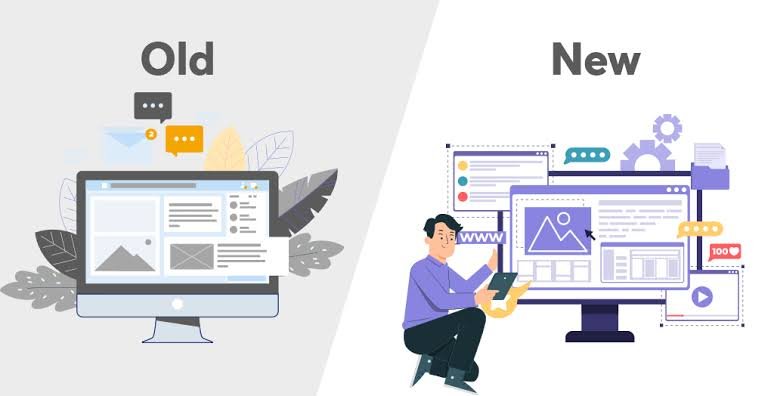
Can You Modernize an Old Website Without Completely Redesigning It?
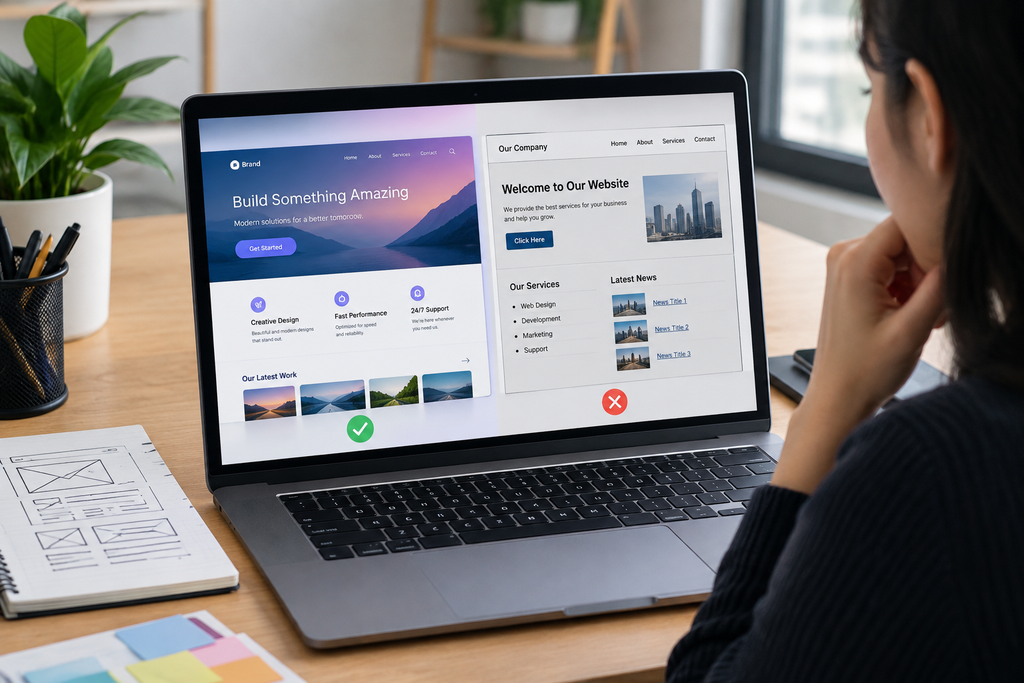
Yes. You can make an outdated website look significantly more modern without rebuilding the entire website from scratch. In many cases, the biggest improvement comes from updating the site’s visual system and user experience rather than replacing every page.
Start by identifying the elements that make the website feel old:
- Outdated typography
- Inconsistent spacing
- Heavy borders and shadows
- Old-fashioned navigation
- Low-quality or dated imagery
- Weak color hierarchy
- Cluttered page layouts
- Poor mobile responsiveness
- Excessive visual effects
- Inconsistent buttons and forms
- Old content presentation
- Slow-loading assets
You do not need to change everything simultaneously. A controlled visual refresh can preserve existing content, URLs, functionality, and backend infrastructure while improving the parts visitors actually notice.
The goal is not to make an old website look like every new website. The goal is to make it clearer, more usable, visually consistent, and appropriate for today’s users.
Start With a Website Audit Instead of Redesigning Immediately
Before changing the design, determine exactly what is outdated.
Open the website on desktop and mobile and evaluate it as a first-time visitor. Look at the homepage, navigation, important landing pages, contact forms, product or service pages, and conversion points.
Create three categories:
Keep: Elements that already work well.
Improve: Elements that are functional but visually outdated.
Replace: Elements that create usability, accessibility, technical, or branding problems.
For example, your website may have excellent written content but an outdated navigation bar, inconsistent buttons, old images, and poor mobile spacing. Rebuilding the content architecture would add unnecessary work if those pages are already useful.
This audit also prevents a common mistake: changing the entire site simply because individual visual elements look old.
Let’s Talk About Your Business
Not sure which approach is right for your business? Get a free consultation with our team.
Update the Layout Before Adding Decorative Effects
One of the fastest ways to modernize an outdated website is to improve its layout.
Older websites often rely on dense columns, excessive borders, fixed-width structures, inconsistent alignment, or large blocks of text. Modern CSS layout systems such as Flexbox and Grid make it possible to create flexible layouts that adapt to different screen sizes.
MDN describes Flexbox as a one-dimensional layout system and CSS Grid as a two-dimensional layout system, both of which are designed to handle modern page layouts more effectively than many older layout techniques.
Look for these opportunities:
- Establish a consistent content container.
- Align major sections to a common grid.
- Reduce unnecessary borders.
- Increase useful whitespace.
- Group related information.
- Simplify multi-column sections.
- Make cards consistent.
- Replace awkward fixed positioning where possible.
If the website already has the right content but the page feels visually unbalanced, improving its structure may produce a larger improvement than adding gradients, animations, or decorative graphics.
For a deeper layout cleanup, [INTERNAL LINK: How Can I Fix Poor Spacing, Alignment, and Layout Problems in My Website Design?] is a natural related resource.
Refresh the Typography
Typography can make an older website look dated even when the underlying layout is reasonable.
Look for websites that use:
- Too many unrelated fonts
- Very small body text
- Excessive bold text
- Inconsistent heading sizes
- Poor line height
- Decorative fonts for ordinary content
- All-caps text used excessively
- Different typography styles for similar components
A modern typography system does not necessarily require a completely new font.
You might be able to keep an existing typeface and improve the website simply by standardizing its use.
For example, establish clear styles for:
- H1
- H2
- H3
- Body text
- Supporting text
- Buttons
- Navigation
- Form labels
Use predictable font sizes, weights, and line heights rather than styling each section independently.
If the existing font itself is causing problems, evaluate whether replacing it is worthwhile. Test the replacement with real page content because font metrics can change heading wrapping, button width, card height, and overall spacing.
See [INTERNAL LINK: How Many Fonts Should a Website Use, and How Can I Choose the Right Typography?] for a more detailed typography decision process.
Simplify the Color Palette
An outdated website often uses too many colors without assigning them specific roles.
Instead of choosing colors individually for every component, establish a small visual system.
You might define:
- Primary brand color
- Secondary color
- Accent color
- Main background
- Secondary background
- Primary text
- Muted text
- Success/error states
The objective is not to remove color. It is to make color predictable.
For example, if every button uses a different shade of blue, visitors cannot easily understand which actions have the same importance. If links, headings, borders, icons, and backgrounds all use unrelated colors, the interface can feel visually noisy.
Contrast also matters. WCAG 2.2’s Level AA requirement specifies a minimum contrast ratio of 4.5:1 for normal text and 3:1 for large text, subject to the standard’s exceptions.
That makes a color refresh an accessibility task as well as a branding exercise.
For a complete process for choosing the site’s colors, use [INTERNAL LINK: How Can I Choose the Right Color Palette for a Professional Business Website?].
Replace Dated Images Before Rebuilding the Entire Homepage
Images can make a website look old surprisingly quickly.
Common problems include:
- Low-resolution photographs
- Generic stock imagery
- Inconsistent image styles
- Old product photographs
- Oversized image files
- Images with text baked into them
- Decorative graphics that no longer match the brand
You do not necessarily need new photography for every page.
Prioritize the images visitors see first:
- Homepage hero
- Main product or service imagery
- About/company imagery
- Key landing pages
- Featured content
Use consistent image proportions and treatment. A page can immediately feel more polished when its images share a consistent visual language.
Also check image performance. Modernizing the appearance while replacing every image with huge files can create a slower website.
Redesign the Header and Navigation Carefully
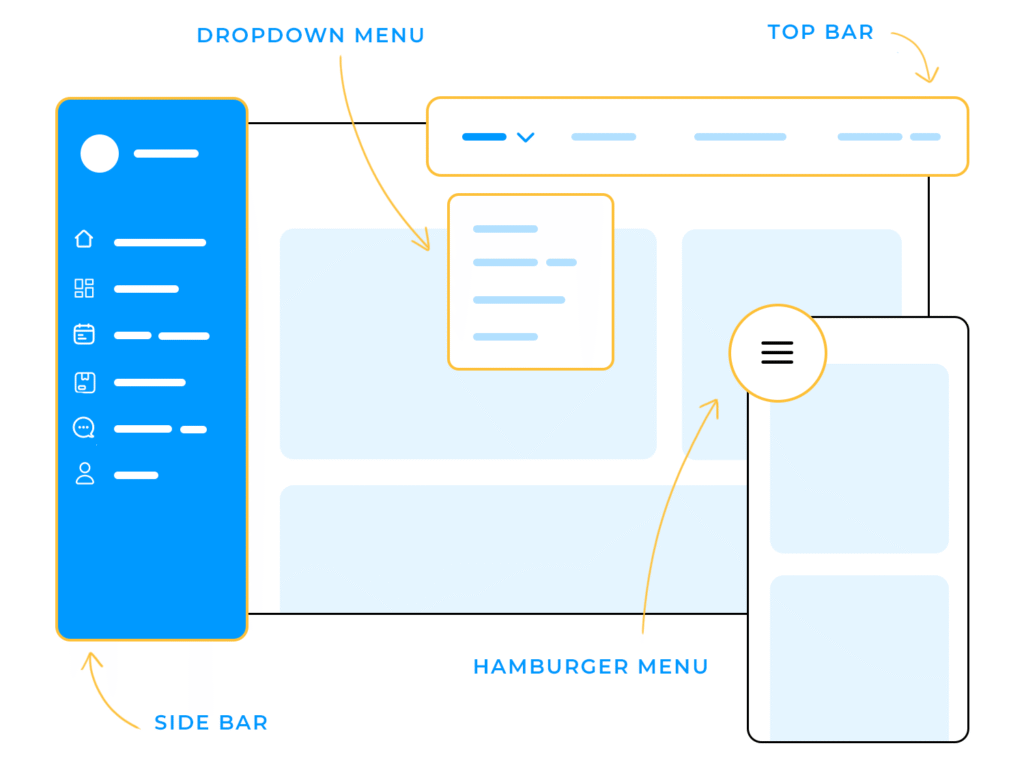
The header is one of the most frequently seen components of a website, so an outdated navigation system can make the entire site feel old.
Look for:
- Too many top-level navigation items
- Unclear labels
- Multiple competing calls to action
- Excessive dropdowns
- Tiny text
- Crowded header areas
- Poor mobile navigation
- Inconsistent button styling
Do not redesign navigation merely to make it look fashionable. Its primary job is helping visitors find important content.
Group related pages logically and prioritize the destinations that users actually need.
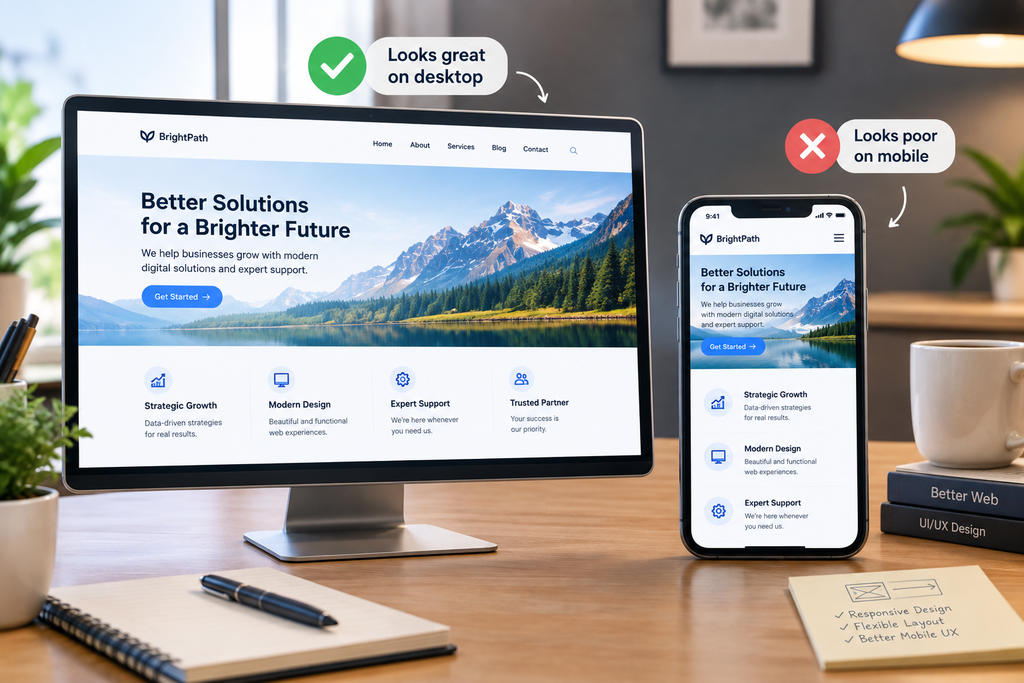
On mobile, navigation should be designed specifically for a narrow viewport rather than treating the desktop navigation as something that simply needs to shrink.
MDN’s responsive design guidance explains that responsive layouts should adapt to different screen sizes and can use media queries, Flexbox, Grid, and other modern CSS capabilities to change the layout appropriately.
Modernize Buttons, Forms, and Other Repeated Components
You can make an old website feel much newer by redesigning the components that appear repeatedly.
Create a consistent system for:
- Primary buttons
- Secondary buttons
- Links
- Form fields
- Cards
- Alerts
- Badges
- Navigation states
- Testimonials
- Pricing blocks
For example, if one page has rounded buttons with shadows and another has square buttons with borders, the site feels like multiple designs were combined.
Choose consistent rules for:
- Border radius
- Height
- Padding
- Font weight
- Colors
- Hover states
- Focus states
- Borders
- Shadows
Then apply them across the site.
This approach is often more efficient than individually redesigning every page.
Remove Visual Effects That No Longer Serve a Purpose
Modernizing an old website does not mean adding more animation.
Older websites may contain:
- Flash-like hover effects
- Excessive gradients
- Animated backgrounds
- Automatic carousels
- Heavy drop shadows
- Text effects
- Decorative borders
- Unnecessary popups
But a newer website can also become outdated-looking when it imitates trends without a clear purpose.
Keep effects that communicate interaction or improve understanding. Remove effects that distract from the content.
A simple transition on a button can help communicate interaction. An elaborate animation that delays access to important content may do the opposite.
Make Mobile Experience a Priority
A website cannot feel modern if it works well only on a large desktop screen.
Responsive design allows layouts to adapt to different screen sizes. MDN specifically notes that fixed-width pages can create horizontal scrolling on narrow devices and excessive empty space on wide screens.
Test the website at different widths and look for:
- Horizontal scrolling
- Tiny navigation text
- Buttons that are difficult to tap
- Images overflowing their containers
- Headings wrapping badly
- Columns becoming too narrow
- Forms becoming difficult to complete
- Excessive mobile spacing
- Content hidden behind fixed elements
Do not assume that making everything smaller creates a mobile design.
Sometimes the correct solution is to change the structure: turn three columns into one, move navigation into a mobile menu, stack buttons, or reorder content.
Improve Accessibility While You Modernize
Accessibility should be part of the visual refresh rather than a final checklist.
Review:
- Text contrast
- Keyboard navigation
- Visible focus states
- Form labels
- Heading structure
- Alternative text for meaningful images
- Text resizing
- Reflow on smaller screens
WCAG 2.2 includes requirements covering contrast, text resizing, reflow, focus visibility, and other aspects of accessible interaction.
For example, removing a visible focus outline simply because it looks old-fashioned can create an accessibility problem. Instead, replace it with a more polished focus indicator that remains clearly visible.
A visual refresh should improve the interface without making it harder for people to navigate.
Improve Performance Without Rebuilding the Site
A website can have a modern visual design and still feel old because it loads slowly or shifts unexpectedly.
Google’s current page-experience documentation recommends paying attention to Core Web Vitals, mobile presentation, HTTPS, intrusive interstitials, and the overall ability of users to distinguish and interact with the main content.
Google’s Core Web Vitals include:
- LCP: loading performance
- INP: responsiveness
- CLS: visual stability
Rather than guessing which technical improvements matter, measure the existing site first.
Use PageSpeed Insights, Chrome DevTools, and Search Console where appropriate. Identify the largest performance problems before investing time in minor visual optimizations.
Common improvements may include:
- Compressing oversized images
- Removing unnecessary scripts
- Reducing unused CSS
- Loading only required fonts
- Reserving space for images to reduce layout shifts
- Reviewing third-party scripts
- Improving caching and delivery
Update Content Without Destroying Existing SEO Value
A visual refresh is also an opportunity to review content, but avoid deleting useful pages simply because their design looks old.
Check:
- Page titles
- Headings
- Outdated claims
- Broken links
- Old contact information
- Product/service descriptions
- Calls to action
- Internal links
- Duplicate or thin content
If an existing page has valuable search visibility, preserve its URL whenever possible unless there is a clear reason to change the information architecture.
A modernization project should improve the user’s experience while protecting useful content and established site structure.
Use a Staged Website Modernization Process
You do not have to launch every change at once.
A practical sequence is:
Phase 1: Audit
Document visual, UX, mobile, accessibility, content, and performance problems.
Phase 2: Establish the design system
Define typography, colors, spacing, containers, buttons, forms, cards, and other repeated components.
Phase 3: Modernize high-visibility areas
Start with the header, homepage hero, navigation, primary CTA, and major page templates.
Phase 4: Apply the system across the site
Update repeated components instead of manually redesigning every page.
Phase 5: Test
Check desktop, tablet, mobile, keyboard navigation, text resizing, forms, links, images, and performance.
Phase 6: Refine
Fix inconsistencies discovered during testing rather than continually adding new visual features.
When Is a Full Redesign Actually Necessary?
A visual refresh is not appropriate for every website.
A larger rebuild may make sense when the existing platform prevents necessary functionality, the information architecture is fundamentally broken, the codebase makes responsive behavior difficult to maintain, security or maintenance requirements cannot be addressed properly, or the business has substantially changed its products and audience.
The key distinction is whether the problem is presentation or foundation.
If the underlying content, architecture, technology, and functionality are still suitable, a carefully planned modernization can deliver substantial improvements without rebuilding everything.
Conclusion
Making an outdated website look modern does not require replacing every page.
Start with the elements visitors notice and interact with most: layout, typography, color, imagery, navigation, buttons, responsive behavior, accessibility, and performance.
The strongest modernization projects are selective. They preserve what already works, remove visual inconsistency, establish a coherent design system, improve mobile usability, and fix technical problems that directly affect the user experience.
Instead of asking, “How can I make this website look newer?” ask a more useful question:
“Which parts of this website are making it harder to understand, navigate, trust, or use?”
Those are the parts worth modernizing first.
FAQs
1. Can I modernize an old website without changing its content?
Yes. A visual modernization can preserve most existing content while updating the presentation. Start with typography, spacing, colors, navigation, buttons, images, responsive behavior, and repeated components. However, outdated factual information, broken links, poor calls to action, and content that no longer represents the business should also be reviewed during the process.
2. What makes a website look outdated?
Common signs include inconsistent typography, cramped layouts, excessive borders or shadows, low-quality imagery, dated navigation, poor mobile responsiveness, inconsistent buttons, weak visual hierarchy, excessive decorative effects, and content that has not been updated. An individual old-fashioned element does not necessarily mean the entire website needs rebuilding; the overall consistency of the design system matters.
3. Should I redesign my website or just update the existing design?
It depends on whether the problem is primarily visual or structural. If the existing platform, content structure, URLs, functionality, and technical foundation are still suitable, a visual refresh may be sufficient. A larger redesign or rebuild becomes more appropriate when the current architecture prevents necessary functionality, responsive behavior, maintenance, security, or significant changes to the site’s information structure.
4. What should I update first on an outdated website?
Start with high-visibility and high-use elements: the header and navigation, homepage hero, typography, color system, primary buttons, major page layouts, imagery, and mobile experience. After those are consistent, update repeated components such as cards, forms, testimonials, pricing blocks, and calls to action. This creates a noticeable improvement without requiring every page to be redesigned independently.
5. Can changing fonts and colors really make an old website look modern?
Yes, but they should be changed as part of a broader visual system. Typography affects hierarchy, spacing, and readability, while color establishes visual relationships and brand consistency. Changing fonts and colors without addressing poor layout, outdated imagery, inconsistent components, or mobile problems may produce a different-looking website without solving the underlying design issues.
6. How do I modernize a website without hurting SEO?
Preserve valuable URLs and useful content where possible, avoid deleting indexed pages without a clear reason, maintain relevant internal links, update outdated information, and test redirects if URLs genuinely need to change. A visual refresh should also preserve important page titles, headings, structured content, and search-relevant information. Google recommends considering page experience alongside content relevance rather than treating a single performance or design metric as the entire SEO strategy.
Let’s Figure It Out.
Tell us what you’re working on and we’ll help you identify the right next step.